Download
| Computer | Download |
|---|---|
| Windows 10 or 11 | SummitApp-Setup.exe |
| Mac, macOS 10.15 or later (Apple silicon and Intel) | SummitApp.dmg |
| Linux | AppImage, or .deb for Ubuntu and Debian |
Windows: run SummitApp-Setup.exe and follow the installer. The Summit App is then in the Start menu. The first time, Windows may show Windows protected your PC or Unknown publisher: click More info, then Run anyway. Windows shows this for apps it hasn't seen many people download yet.
Mac: open SummitApp.dmg and drag Summit App into Applications, then open it from there.
Linux: make the AppImage executable (right-click → Properties → Allow executing file as program, or chmod +x SummitApp-x86_64.AppImage) and run it, or install the .deb. To use the modem, your user must be in the dialout group: run sudo usermod -aG dialout $USER, then log out and back in.
The app updates itself. When a new version has downloaded, an Update button appears at the top of the window: click it to restart with the new version, or the update installs the next time you close the app. It never restarts on its own during a race.
What the Summit App does
The Summit App is a small desktop app that collects times from your Summit timers and syncs them to your race on Zone4. Times reach the computer over the Summit radio modem (or a serial cable for wired Summits), and the app keeps them on the computer until Zone4 confirms it has them. If the internet drops, the app keeps collecting, and everything syncs when the connection comes back.
It replaces the browser-based Summit Bridge, which is no longer supported. A Serverbox remains the most robust option for races with no internet at all.
The window is deliberately small so it can stay on screen beside your timing software all race. Click the pin icon at the top to keep it on top of other windows.
What you need
- Your Summit timers. See Basic Summit Timer Usage if you are new to them.
- The Summit radio modem, plus the cable or USB-to-serial adapter that connects it to the computer.
- A Windows, Mac or Linux computer with the Summit App (see Download).
- A Zone4 login with access to your club, for the one-time setup.

Installing the modem's driver
On a Mac or Linux computer, the modem's driver is built in: skip to Getting set up.
On Windows, the computer needs a driver for the modem before the app can use it. To check, plug the modem in and open Device Manager (right-click the Start button and choose Device Manager):
- Listed under Ports (COM & LPT), for example as Digi USB Serial Port (COM3) or USB Serial Port (COM3): the driver is installed. Note the
COMnumber; it's the port you choose in the app. - Listed under Other devices, often with a warning icon: there is no driver yet. Download the Digi driver from Digi's driver page, then right-click the device, choose Update driver, and point it at the downloaded files.

Getting set up
Settings opens at the top of the window when the app starts. The lists below it stay greyed out until you start communication.
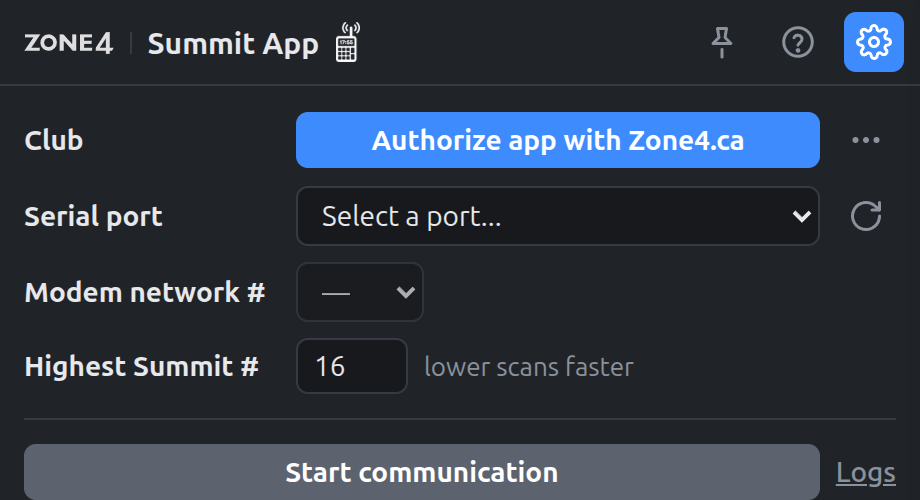
1. Connect your club
Click Authorize app with Zone4.ca. Your browser opens the Zone4 login. Log in and approve the Summit App. Back in the app, the button changes to Logged in as your name; choose your club from Select a club to send times to.
You only do this once. The app keeps your club and its device PIN, the same PIN your Zone4 Go phones use, and doesn't need you to log in again. If you close the login page without finishing, click the button again to open a fresh one. If no browser opens, click Copy link next to Waiting for you to log in and paste the link into a browser on the same computer.
2. Choose the modem
Plug in the modem and pick its port from Serial port: on Windows a COM port that matches the one in Device Manager, on a Mac a /dev/cu.usbserial-… port, and on Linux /dev/ttyUSB0 or similar. It's often labelled with the adapter's maker, such as FTDI. If you plugged the modem in after opening the app, click the refresh icon beside the list.
The app checks the modem straight away: Modem network # shows Connecting…, then the modem's network number and Connected.
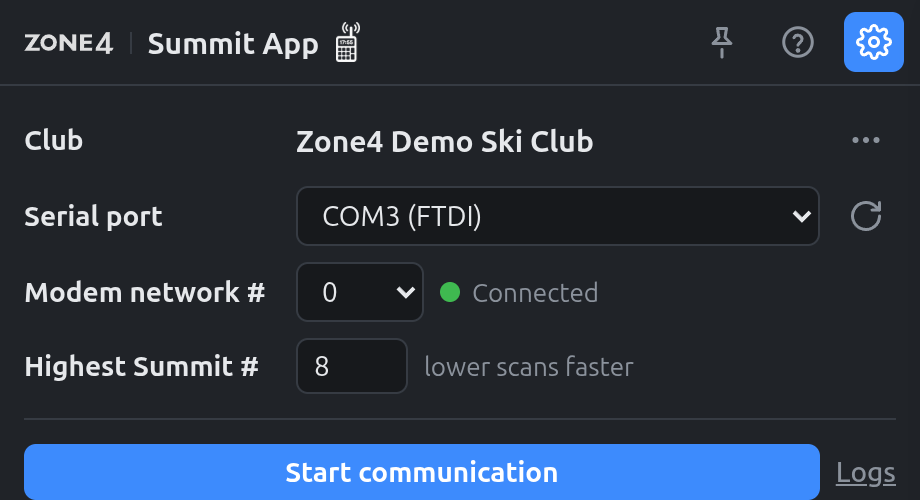
Set Highest Summit # to the highest Summit number you are using (it starts at 9). A lower number finds your Summits faster.
3. Start communication
Start communication becomes available once the club is set and the modem has answered. Click it and turn on your Summits. Each Summit appears in the Summits list as soon as it answers.
4. Sync the Summit clocks
When a Summit is turned on, its clock starts at 00:00:00 and counts up, so its times aren't time of day until it has been synced. Once your Summits are on, click Sync Summit clocks. It's blue until the clocks have been synced that day.
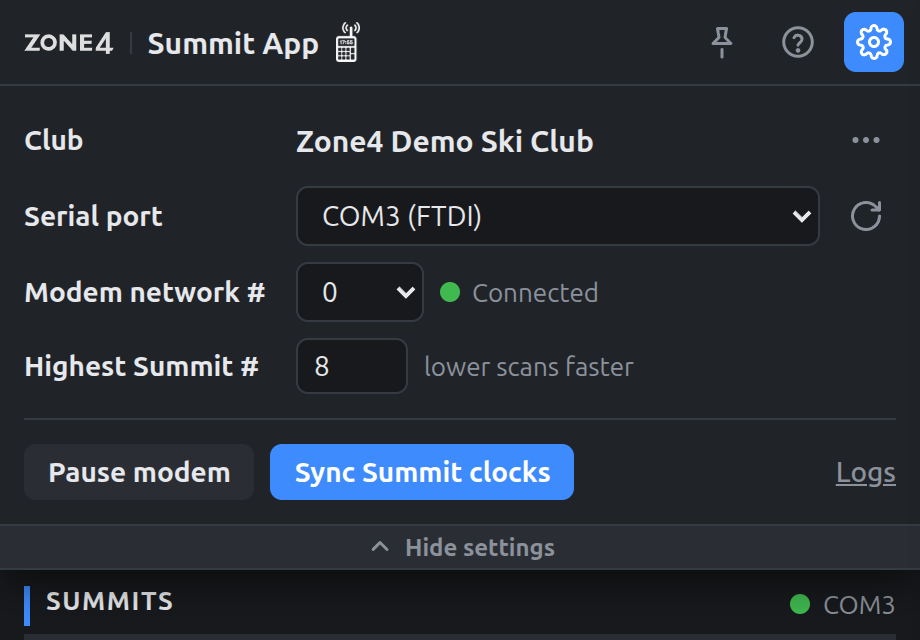
The app sends this computer's time to every Summit that can hear the modem, accurate to within a few milliseconds. A running clock appears at the top of the app showing the time the Summit displays should now match. A few seconds later Settings rolls up out of the way: the gear at the top right brings it back, and Hide settings at the bottom of the panel closes it.
FIS races: if you synchronized your Summits using the FIS synchronization procedure, do not click Sync Summit clocks. It would reset the Summits to this computer's time and undo your FIS synchronization.
Make sure the computer's own clock is correct before syncing. Zone4 also rejects times from a computer whose clock is more than 3 minutes off.
During the race
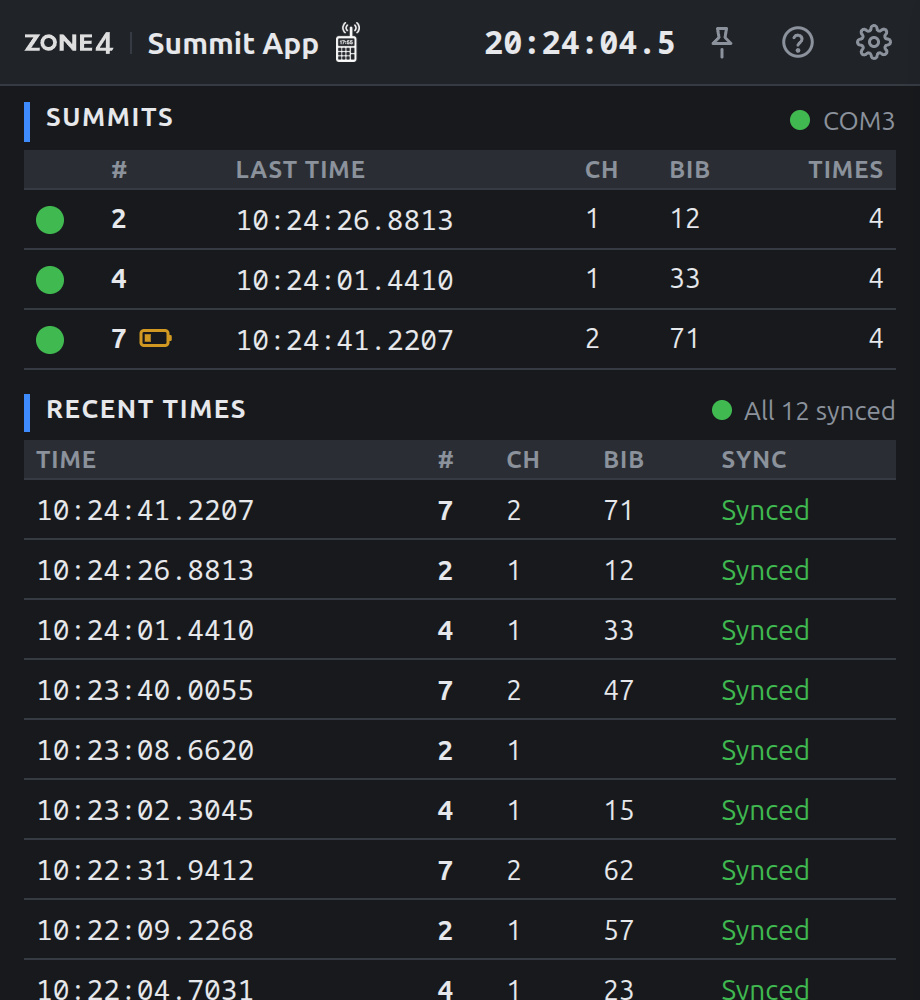
Summits lists every Summit the app has found, with its last time, channel, bib and number of times. The dot shows whether it's in contact:
- Green: heard from in the last 20 seconds.
- Red: no reply. Check that the Summit is on, its batteries, and that it's in radio range.
- Grey: not communicating, or the modem is paused.
A battery icon next to a Summit's number means it's reporting a low battery: red for its main battery, amber for its auxiliary battery. Hover over the icon to see which. The icon goes away once the Summit stops reporting it, for example after you change the batteries.
A ↑ count next to a Summit's times means some haven't been synced to Zone4 yet.
Recent times shows the latest times from every Summit, newest first. New times light up briefly as they arrive. Sync shows Pending until Zone4 has the time, then Synced. The status at the right of the heading sums it up: All 12 synced, 3 pending, or Sync failing if Zone4 can't be reached. Pending times are kept on the computer and sent as soon as the connection is back, so keep the app running until everything shows Synced.
If the modem is unplugged, or its cable comes loose, the modem status at the right of the Summits heading turns red and says it's reconnecting. Plug it back in: the app finds it again on its own and carries on, and times recorded meanwhile are collected from the Summits.
If the app or the computer restarts while the app was communicating, it starts communicating again on its own when you reopen it.
Click a Summit in the Summits list to see when it was last heard from, its total number of times, any low-battery warning, and every time it has sent.
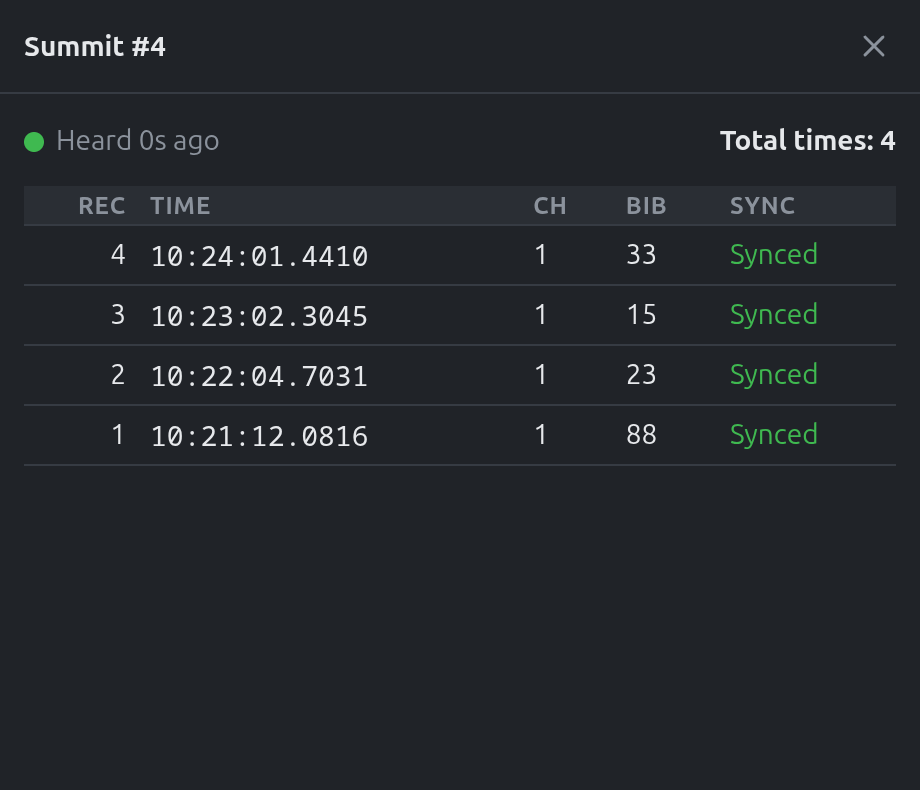
Assigning Summits in Device Setup
In Zone4's Device Setup, the list of devices only includes Summits that Zone4 has received a time from. If you are using a Summit number for the first time, record at least one time on it before assigning it to a timing point.
Less common tasks
Re-syncing the clocks
After the day's first sync the button reads Re-sync Summit clocks, and it asks what to do first, because a Summit that is synced again shifts all of its stored times by the small adjustment it made.
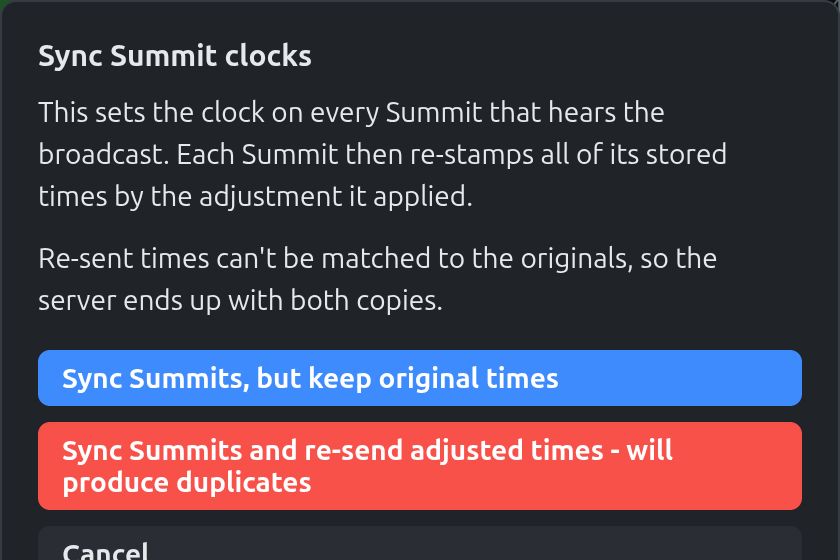
- Sync Summits, but keep original times: the usual choice. The clocks are corrected for new times, and the times already sent to Zone4 stay as they are.
- Sync Summits and re-send adjusted times: sends every stored time again with the adjustment applied. Zone4 can't match these to the originals, so you get duplicates to clean up.
Avoid connecting a new Summit partway through a race: a Summit turned on after the sync needs its own sync, and its times are only as accurate as that sync.
Pausing the modem
If you need to reconfigure a Summit, open Settings and click Pause modem. The app stops transmitting until you click Resume modem. Times already on the Summits are collected when you resume.
Changing club
Open the ⋯ menu next to your club and choose Change club. The modem pauses while you choose. If the app already has times, it asks what to do with them:
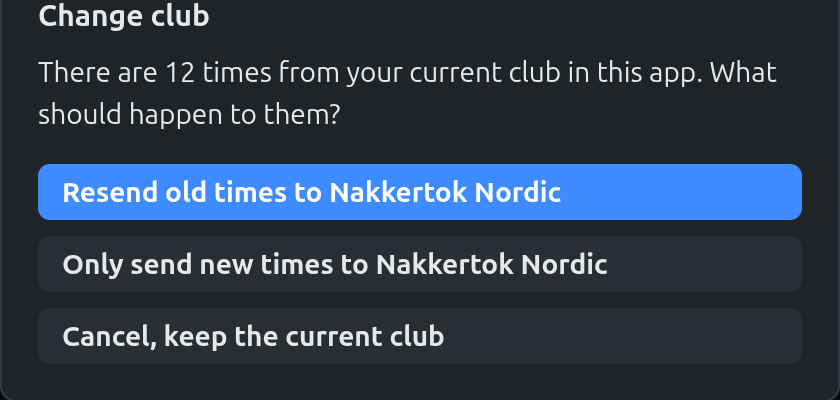
- Resend old times to the new club, or
- Only send new times to the new club. Any times not yet sent to the old club are then marked Not sent.
Closing Settings before choosing a club keeps your current club.
If the Zone4 login can't complete
Some computers block the step where the browser hands the login back to the app. If that happens, open the ⋯ menu next to Club and choose Enter club PIN manually.
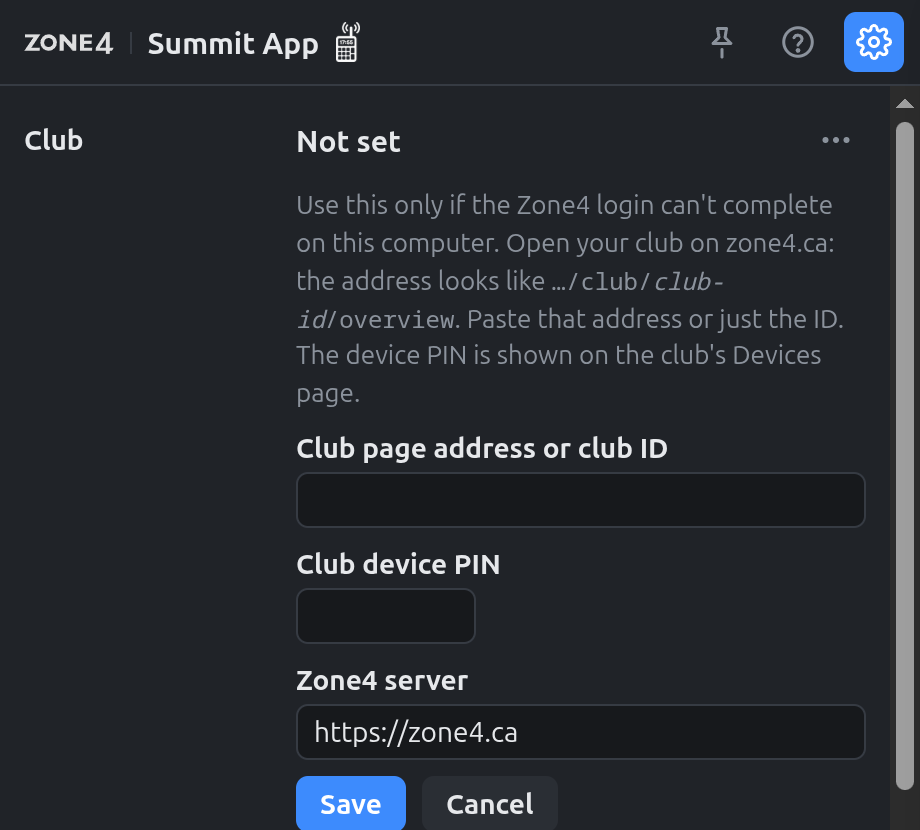
You need two things from zone4.ca:
- Club ID: open your club on zone4.ca. The address looks like
…/club/1a2b3c4d-…/overview. Paste the whole address, or just the long ID after/club/. - Device PIN: the 5-digit PIN shown on your club's Devices page.
Click Save.
Sending times to a serverbox
Times normally go straight to zone4.ca. To send them to a Serverbox or another host instead, open the ⋯ menu next to your club and choose Change host URL. A Host URL setting appears: choose Serverbox – http://10.23.33.254, or Custom… to enter an IP address or URL. Logging in and choosing your club still use zone4.ca; only the times go to the host you choose.
While a host other than the web is selected, Host URL stays visible in Settings. Switch back to Web to hide it again.
Light or dark theme
The app is dark by default. To change it, open the ⋯ menu next to your club and choose Light theme, Dark theme or Match system theme.
Changing the modem's network
The radio modem and your Summits must all use the same network number. To change the modem's, pick a different number in Modem network # and click Reprogram. Then set each Summit to the same network number, or it will stop communicating.
Troubleshooting
Windows says the app is from an unknown publisher. See Download: click More info, then Run anyway.
The port list says No COM ports found. Check the cable, then install the modem's driver (see Installing the modem's driver) and click the refresh icon. If the modem is connected but missing from the list, choose Type a port name… at the bottom of the list and enter it, such as COM5.
Modem network # says No modem found on this port. You may have picked the wrong port, or the modem isn't powered. Couldn't open this port means another program is using it, such as another timing program or an old Summit Bridge tab. Only one Summit App runs at a time: opening it again brings the open window to the front.
A Summit doesn't appear. Check that it's on and within radio range, and that Highest Summit # is at least its number.
Times show as early-morning times, such as 00:12:30. That Summit hasn't been synced since it was turned on. Sync the Summit clocks.
The Recent times status says Sync failing. Hover over it to see why:
- This computer's clock is more than 3 minutes off: correct the computer's date and time.
- Invalid club or PIN: the club's device PIN may have changed. Use Change club in the ⋯ menu.
- Anything else usually means no internet connection. Times are kept and sent when it returns.
Something else isn't right. Open Settings, click Logs at the right of the button row, then Copy log, and paste it into your message to Zone4 support. The copied log includes your setup details but no passwords or login tokens. The app also keeps a log file, summit.log: on Windows in %APPDATA%\ca.zone4.summit (paste that into the File Explorer address bar to open the folder), on a Mac in ~/Library/Application Support/ca.zone4.summit, and on Linux in ~/.local/share/ca.zone4.summit.