
There are two primary ways of setting up racer categories in Zone4. The method you use in Zone4 Timing will depend on how your fields have been setup in the registration form for your event. These two methods are:
- Racers fill in a variety of fields (usually age, gender and distance) during registration and categories are created for each combination of fields.
- Racers select their category from a list during registration.
Categories Within Zone4 Timing
The word “category” can mean different things in different sports and race formats. In the simplest format all racers will start in one big group, follow the same course, and then be broken into categories only on the final results. In other race types, each category might start the separately, do a different course to the other categories, and then be ranked within that group on the results. For this reason, in Zone4 Timing we sort racers into three different types of racer groups: Start Groups, Course Groups, and Result Groups, leaving you with full control over what exactly the word category means in your race.
These groups can be defined by any field or combination of fields from your registration form. The fields most often used are race distance, age, and gender, but any field on your registration form can be used. Furthermore, in one race you can have Start Groups, Course Groups and Result Groups all defined using different fields. This has been done to make Zone4 Timing as flexible as possible so that it can meet the needs of all types of races.
Example
Following is an example of a race that would follow the Racer Group setup most often used in race timing. The registration form that would be used for this sample race would have the following fields for racers to choose from:

You’re timing a loppet ski race and have two distances for racers to choose from, a 15km and a 30km. You decide to base your start groups off of distance so that those doing the same distance start together. As such when you’re setting up your start list you choose to Split Racers into Start Groups and select the “Choose your distance” field from the registration form to define your start groups.The options available in that field (15km and 30 km) become the Start Groups in the race, as pictured below.
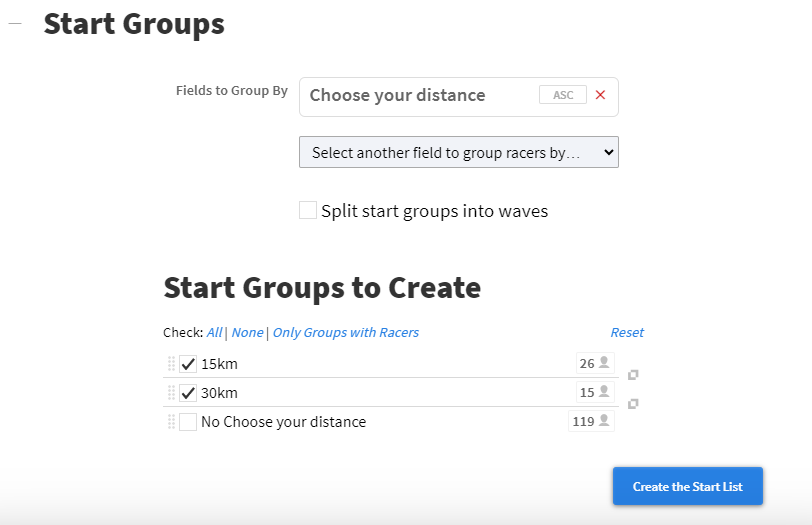 We’ve just created Start Groups based on the race distance, which means that our Course Groups will be the same as our start groups, and can be created the same way by selecting the same “Choose your distance” field. See Create Start Lists and Device Setup for more info.
On the results for this example, we’ve chosen to create three different result sets, each with the racers grouped a different way:
- An “Overall Results” set based on just the Distance field. This will show the overall winners of each distance. By default, results are grouped by your Course Groups so you don’t need to select any fields to make a result set grouped by distance.
- An “Overall Gender” result set based on both the Distance and Gender field showing the winner of each Distance in each Gender. In this case, by simply adding the Gender field to a result set, we see that it has created each permutation of 15 km Male, 15 km Female, 30 km Male, 30 km Female.

-
And finally, we will make an “Age Group” result set. You can do this by adding the Age field and the Gender field. When you select to group racers by an age field (or by any other number field) you are given the option to enter the ranges that will form your groups, as you can see in the picture below. The system then creates a result group for each of the combinations possible from your data.
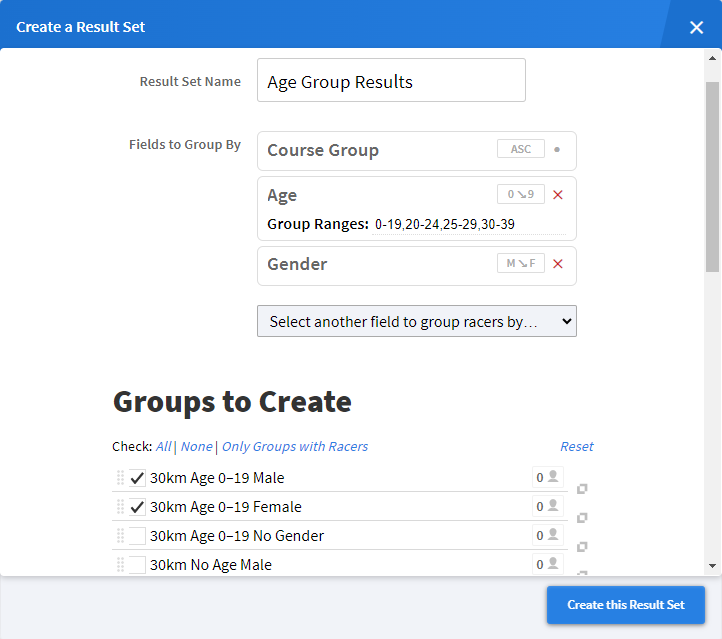
For more info on setting up results click here.