This is a walkthrough of building a start list for a cross-country ski race seeded off FIS or USSA points, from start groups through to a published seed list. It uses an interval start race seeded with the USSA Interval Start seeding function as the example. Other FIS, USSA and Nordiq Canada formats follow the same steps with a different seeding function.
For the general start list tools this builds on, see Create a Start List. For the federation rules each seeding function follows, see Cross Country Skiing Seed Order.
This describes the new start list tools at admin.zone4.ca/startlist, which aren’t on zone4.ca yet. The start list tools you reach from your race on zone4.ca look and work differently. To follow these steps, open your race from admin.zone4.ca/startlist.
Before You Start
Your race needs its racers, and each racer’s points and licence numbers, before you seed it.
- If you use Zone4 registration, create your race by importing it from the registration. The racers’ licence numbers and points come across with them. See USSA Validation for checking USSA licences at registration.
- If you don’t, you can create the race by importing a CSV of your racers, with a column for each points list and licence number.
You will need a number field for each points list you seed off (for example FIS Distance and USSA Distance), and a field for each licence those points belong to (for example the racers’ USSA licence number).
It is best to wait until registration has closed before seeding. Racers added after racer numbers are assigned won’t be seeded with the others.
Creating Start Groups
Find your race at admin.zone4.ca/startlist and open it.
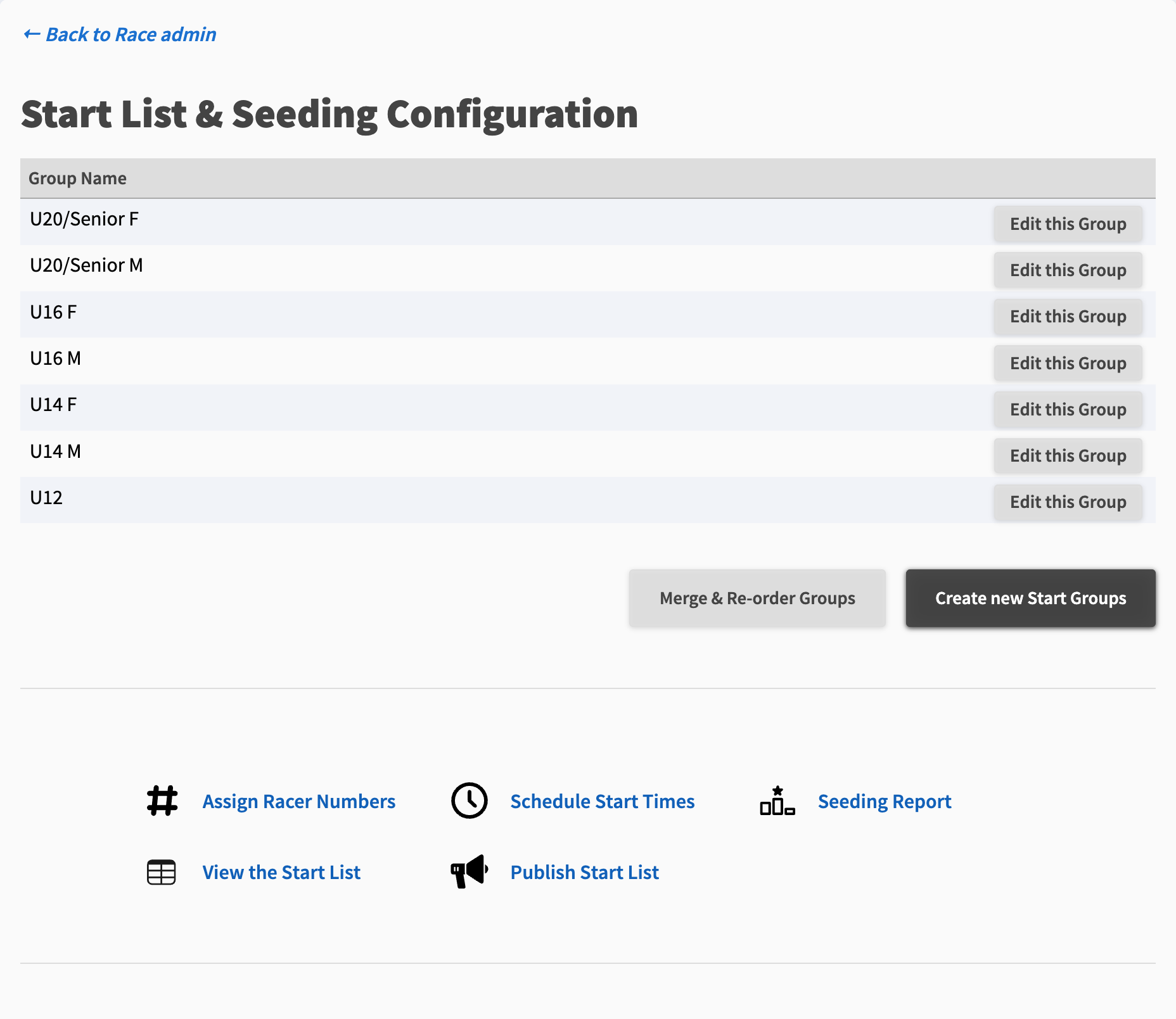
First, create your start groups, and put them in the order they will start. A typical split is by category and gender, such as U20 Female, U20 Male, U16 Female and so on. Merge any categories that start together, such as U8 and U10.
See Creating Start Groups and Re-ordering and Merging Start Groups.
Checking Your Points Fields
The seeding functions read each racer’s points from points fields. Check these are set up correctly before you seed.
-
Click Assign Racer Numbers.
-
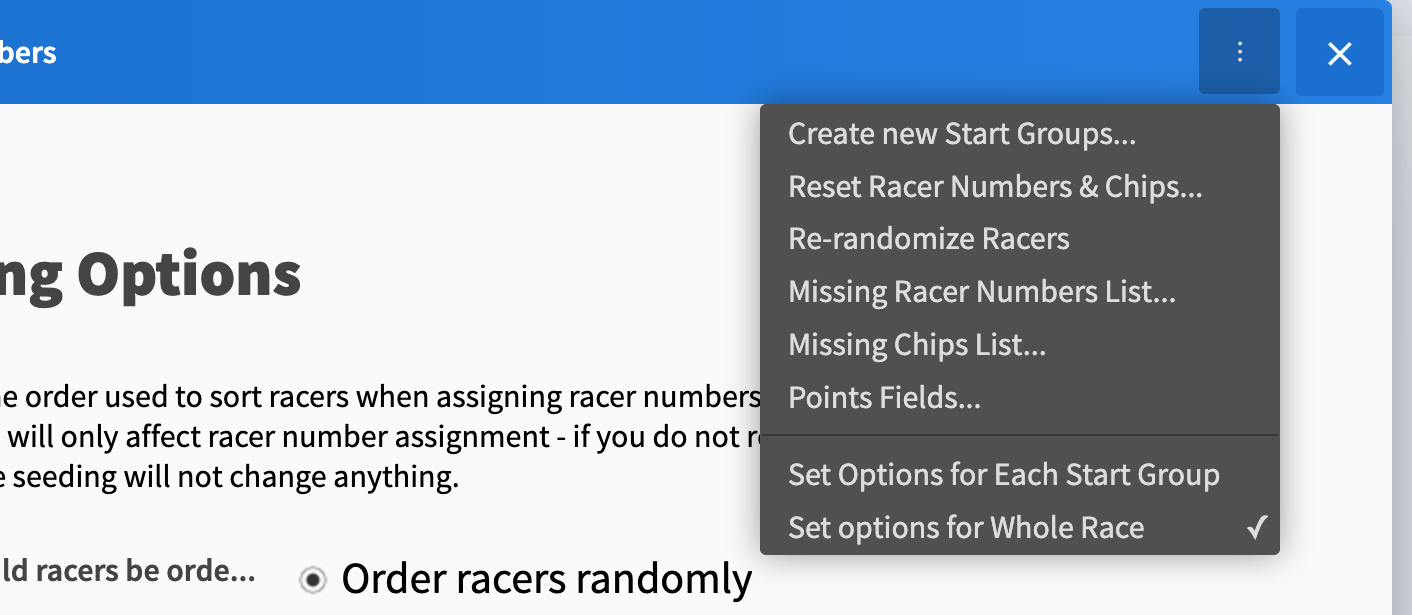
Open the ⋯ menu at the top right of the panel and choose Points Fields….
-
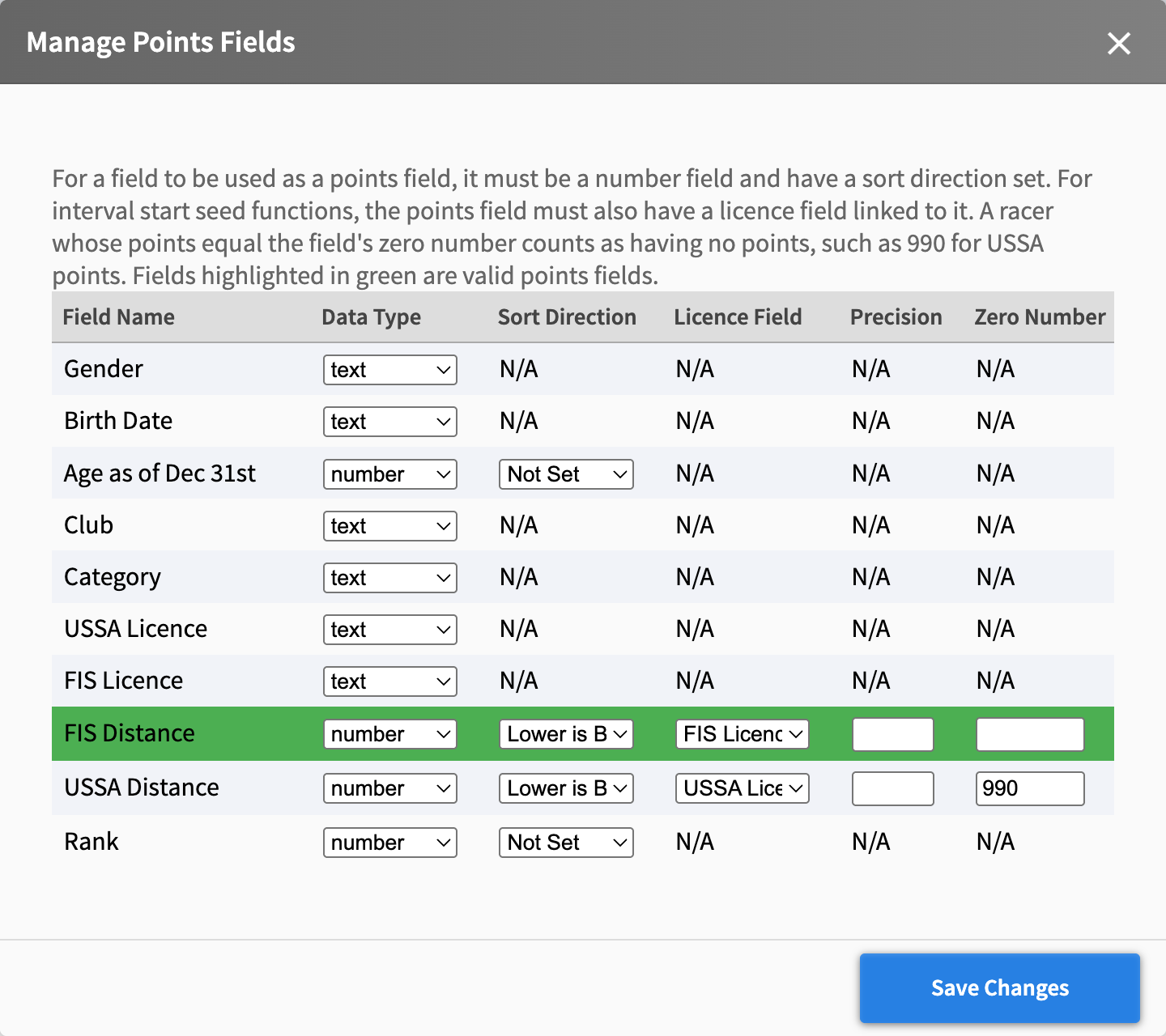
In the Manage Points Fields window, check the row for each points field you will seed off. For USSA distance points, for example:
- Data Type is number.
- Sort Direction is Lower is Better.
- Licence Field is the field your racers’ USSA licence numbers are stored in. With the USSA Interval Start, USSA Sprint Qualifier and Nordiq Canada Interval Start seeding functions, a racer’s points only count if they have a licence in this field.
- Zero Number is 990. USSA stores a racer with no points as having 990 points; setting this makes those racers count as having no points, rather than as the slowest racers with points.
-
Click Save Changes to go back to the seeding options.
A field only appears in the seeding options once it is a number field with a sort direction set.
Choosing the Seeding for Each Start Group
Different categories are usually seeded differently: the older categories off points, the youngest at random. To set seeding for each start group, open the ⋯ menu and choose Set Options for Each Start Group, if it isn’t already checked.
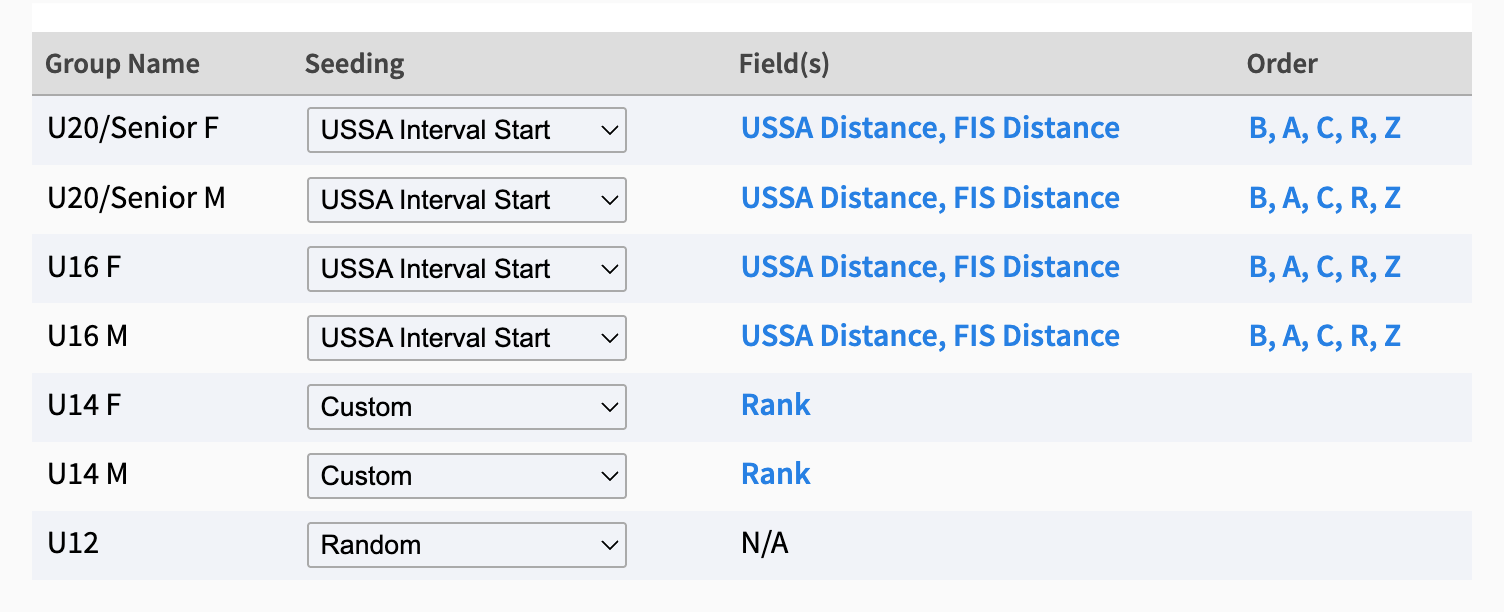
The panel then shows a table with a row for each start group. In the Seeding column, choose one of:
- Random: randomizes the racers in the group.
- Custom: sorts the group by a field you choose, such as a ranking, in ascending or descending order. Use this for any field other than the points lists below.
- FIS/NC/USSA Mass Start: orders racers by distance points, best points first. Racers with no points are randomized after them. Example: US Nationals, Anchorage 2025.
- Nordiq Canada Interval Start: puts racers with points into one to three seed groups (I, II and III) depending on how many have points, then a group for racers with a licence but no points (IV) and one for racers with no licence (V). Racers are randomized within each group. See Cross Country Skiing Individual Start Seeding. Example: Canada Cup, Sovereign Lake 2024.
- FIS/NC Sprint Qualifier: orders racers by sprint points, best points first. Example: RMISA, Fairbanks 2025.
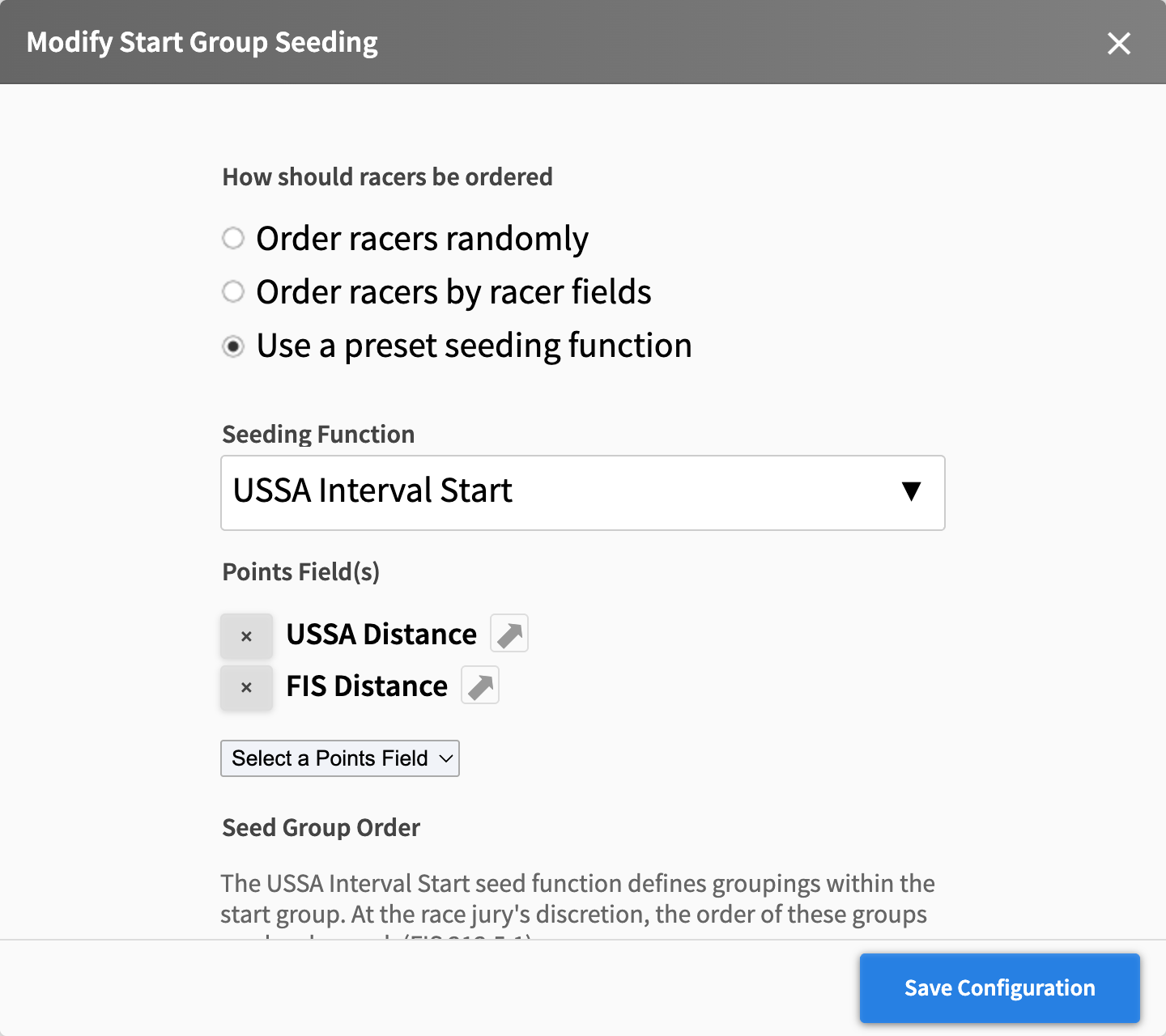
- USSA Interval Start: puts the 20 best-ranked racers in group A, the next 20 in group B and the next 20 in group C, all randomized within their group. The rest of the racers with points go in group R in points order, and racers with no points in group Z, randomized. Example: US Nationals, Anchorage 2025.
- USSA Sprint Qualifier: puts the 20 best-ranked racers in group A, randomized. The rest of the racers with points go in group R in points order, and racers with no points in group Z, randomized. Example: US Nationals, Anchorage 2025.
Make sure every start group has something chosen. For example:
| Start Group | Seeding | Field(s) |
|---|---|---|
| U20/Senior F, U20/Senior M, U16 F, U16 M | USSA Interval Start | USSA Distance, FIS Distance |
| U14 F, U14 M | Custom | Rank |
| U12 | Random |
Setting the Points Fields and Seed Group Order
When you choose a preset seeding function, it picks a points field for you if your race has one it recognizes. Check it, and set the order the seed groups start in, by clicking the start group’s Field(s) or Order column. This opens the Modify Start Group Seeding window.
-
Under Points Field(s), check the right points fields are listed. Use Select a Points Field to add another, and × to remove one.
If you list more than one, each racer is seeded on their best points across them. Listing FIS Distance and USSA Distance together seeds each racer on the lower of their FIS and USSA distance points, which is what the USSA rules ask for.
-
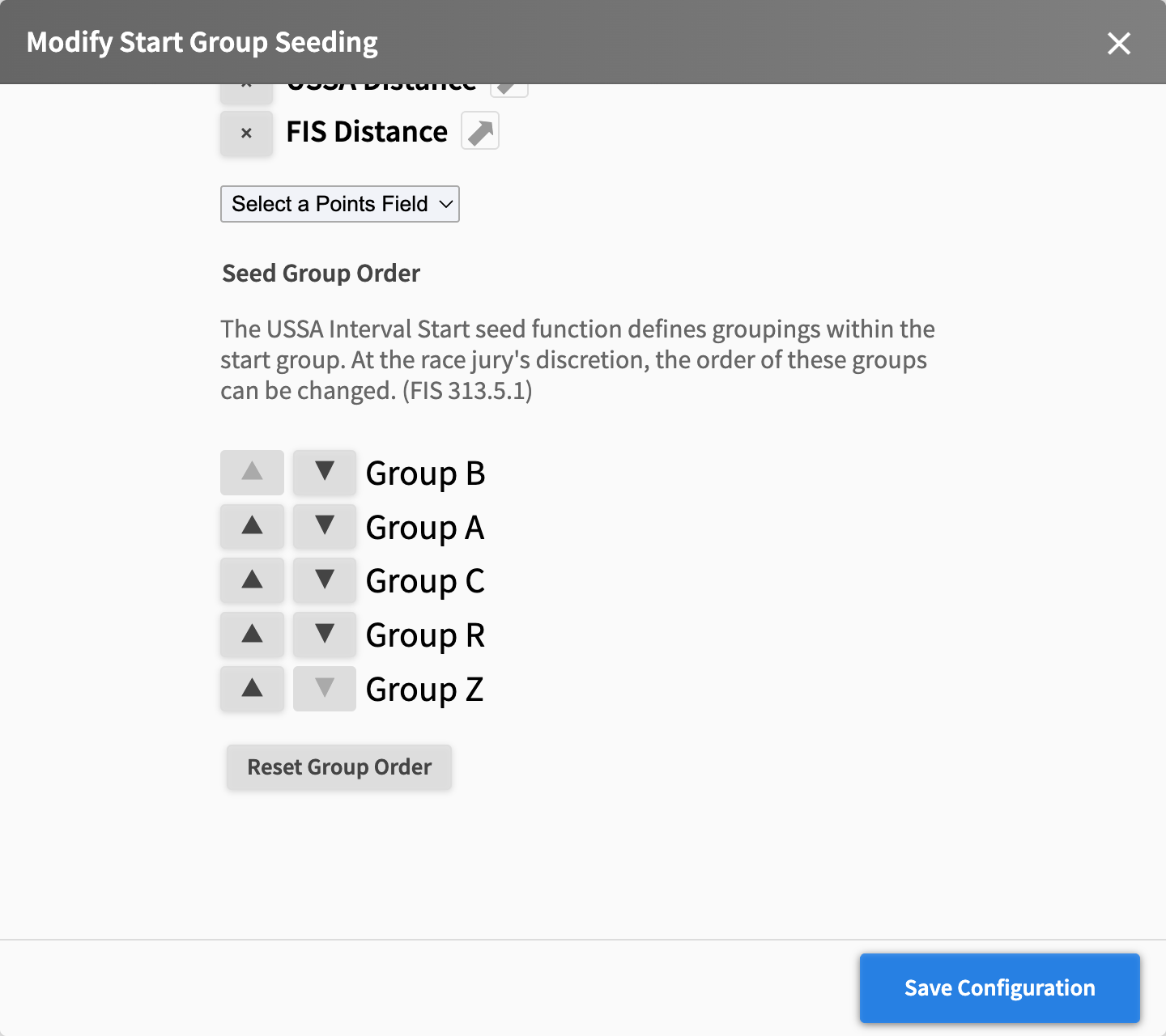
Scroll down to Seed Group Order, and use the ▲ and ▼ buttons to put the seed groups in the order they will start. USSA rules leave this to the jury, so check it with them first.
By default, USSA Interval Start starts group B first, then A, C, R and Z, the order USSA Junior Nationals normally use. Reset Group Order puts the groups back in that order.
-
Click Save Configuration.
Repeat this for each start group seeded off points.
If all your start groups use the same seeding, you can instead choose Set options for Whole Race in the ⋯ menu and set it once, with Order racers using a preset seeding function.
Assigning Racer Numbers
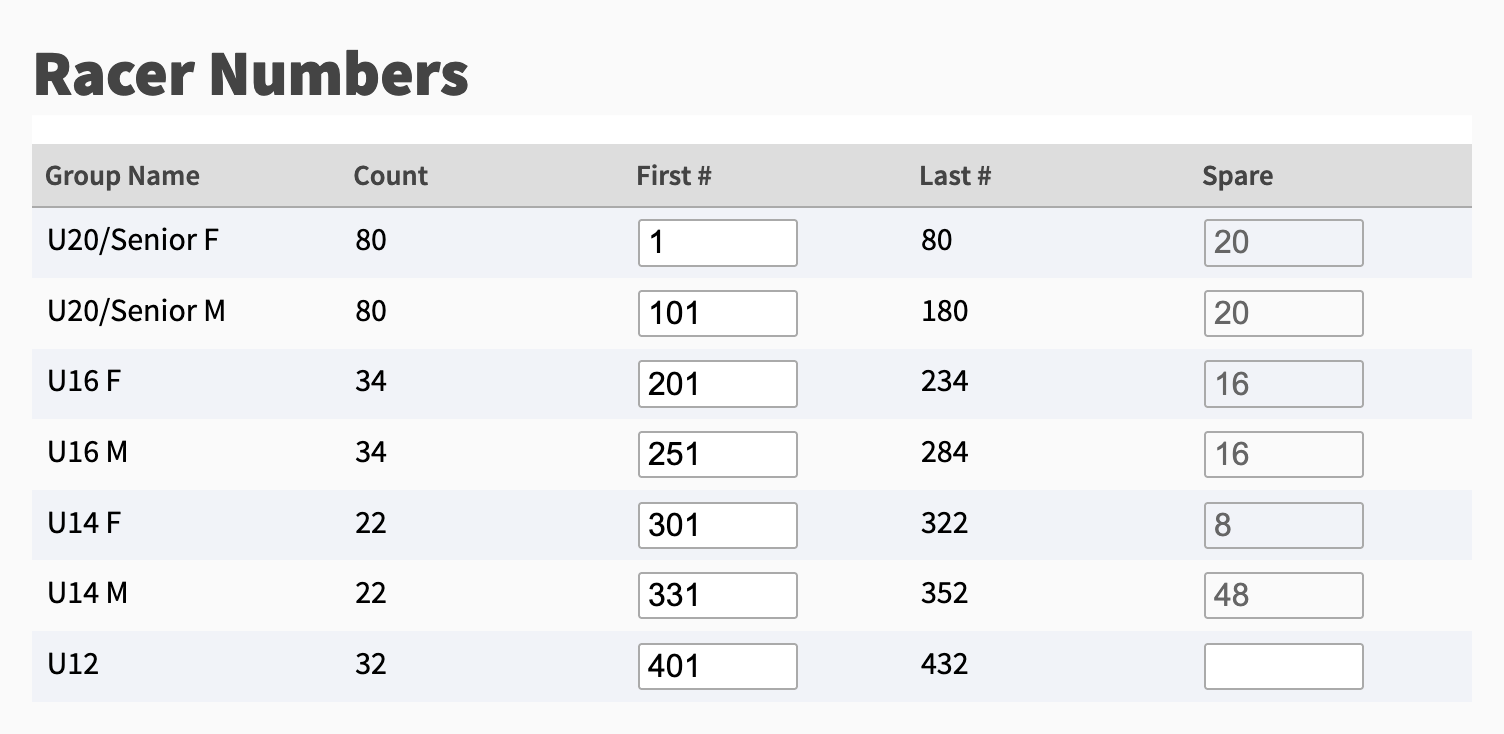
Below the seeding table, the Racer Numbers table lists each start group’s Count of racers, First #, Last # and Spare numbers. Enter a First # for any group that should start on a particular number, such as 101 for the second group and 201 for the third. Spare is how many numbers are left unused after a group, for late entries; when you set the next group’s First #, it fills in on its own.
If you are using GoChips, enter your chip racks under Timing Chips. See Assigning Timing Chips.
-
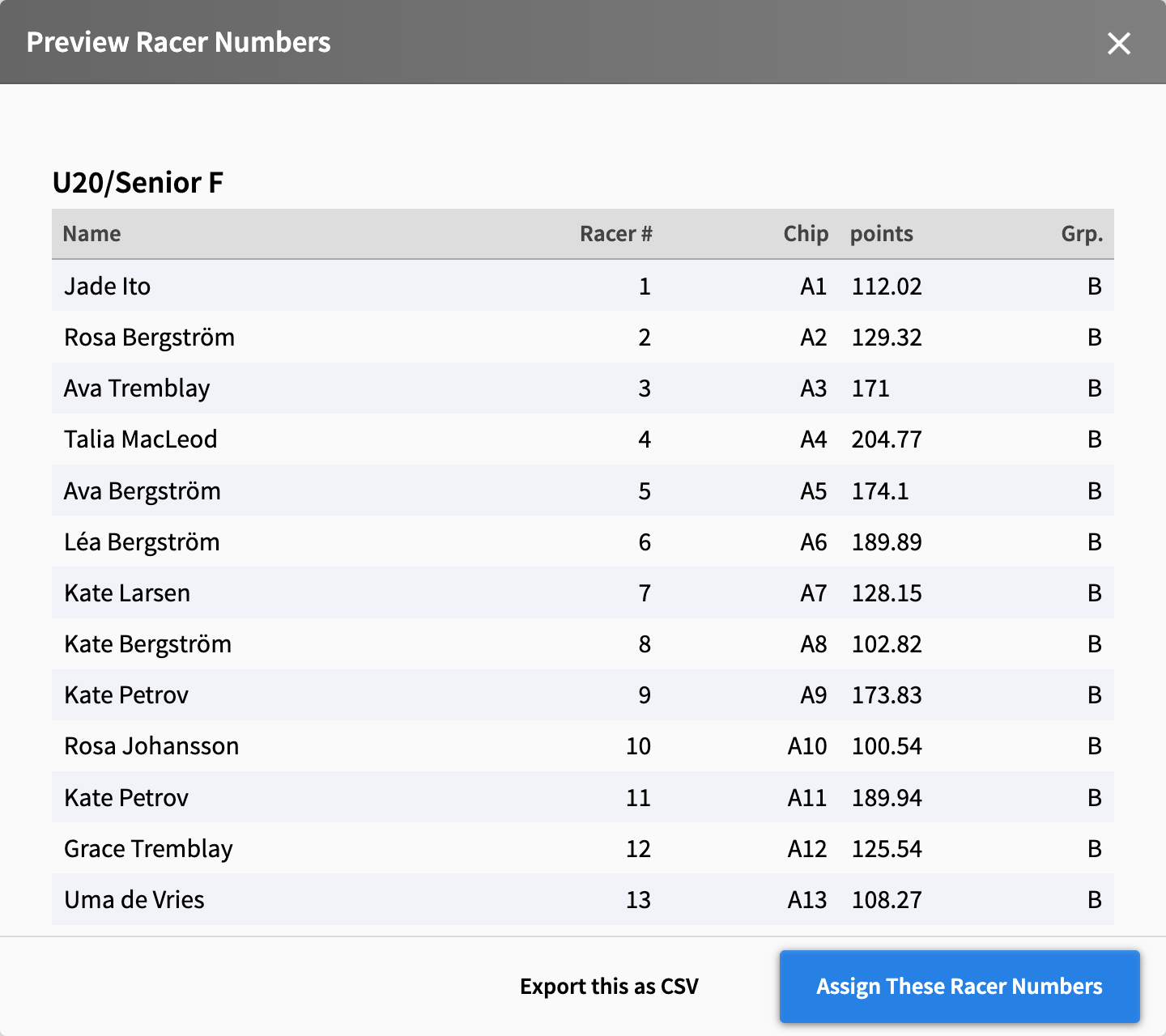
Click Preview Changes. The Preview Racer Numbers window lists each racer’s new racer number and chip, with the points they were seeded on and their seed group (Grp.).
-
Check the order. Export this as CSV downloads the preview if you want to check it in a spreadsheet.
-
Click Assign These Racer Numbers.
Checking the Seeding Report
Once racer numbers are assigned, you are taken to the Seeding Report. It lists each start group’s racers in racer number order.
- Download to CSV downloads the report.
- Publish this Report posts the seed list on Zone4.ca. You can include a link to it on the event page, and choose whether it shows racer numbers.
If the seeding isn’t right, fix the settings and assign racer numbers again. You can come back to the report from Seeding Report on the start list page.
Start Times and Publishing
Next, schedule the start times. Start times are assigned in racer number order, so do this after the racer numbers are final. See Assigning Start Times.
Then click View the Start List. Customize Start List sets which columns it shows. For a FIS or USSA race you may want to add year of birth, the racers’ USSA and FIS licence numbers, and their FIS and USSA distance points. Add a field from the list at the bottom of Line 1 Columns, and drag the fields into the order you want them.
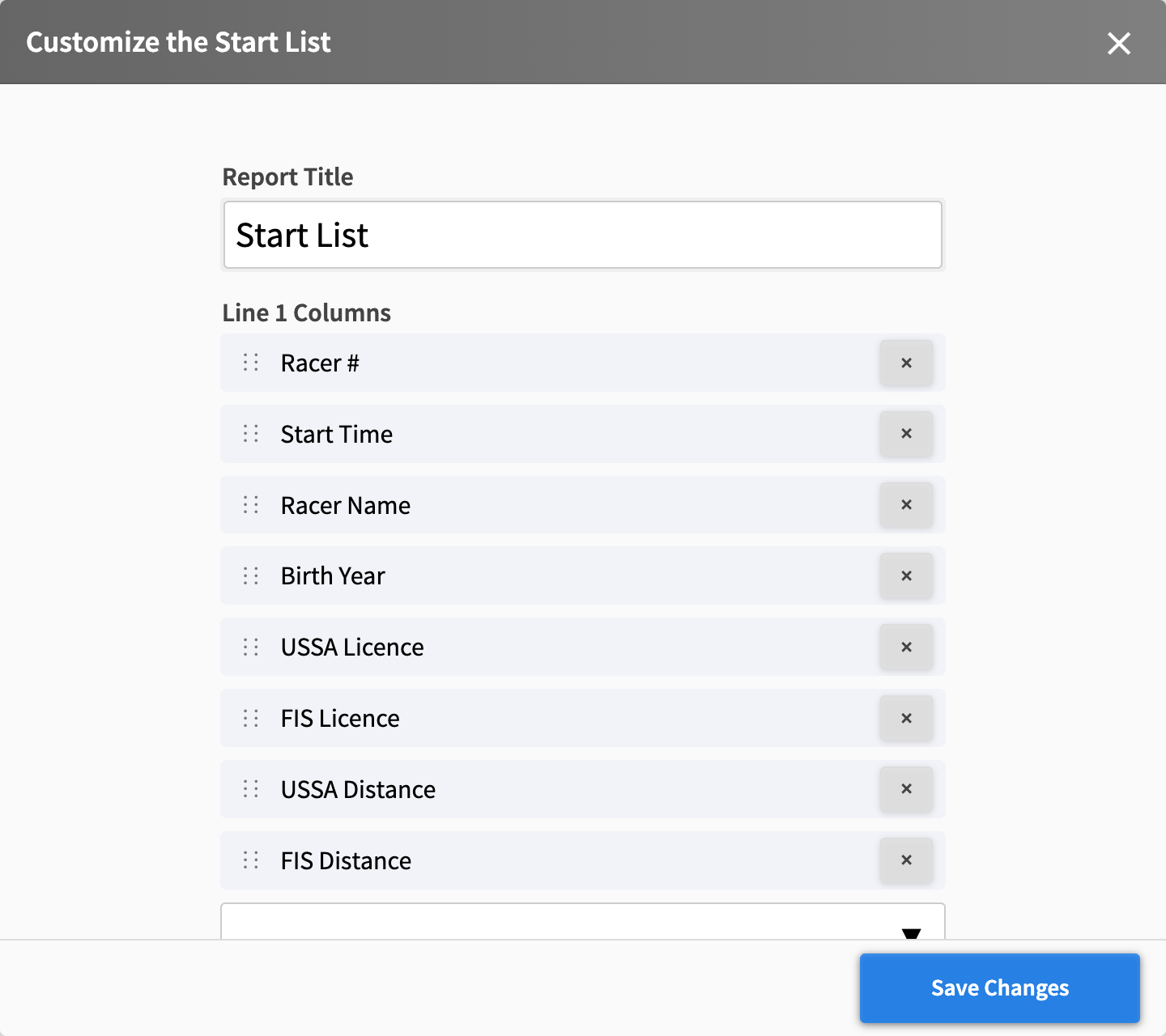
Click Save Changes. It can take up to a minute for the start list to show the new columns.
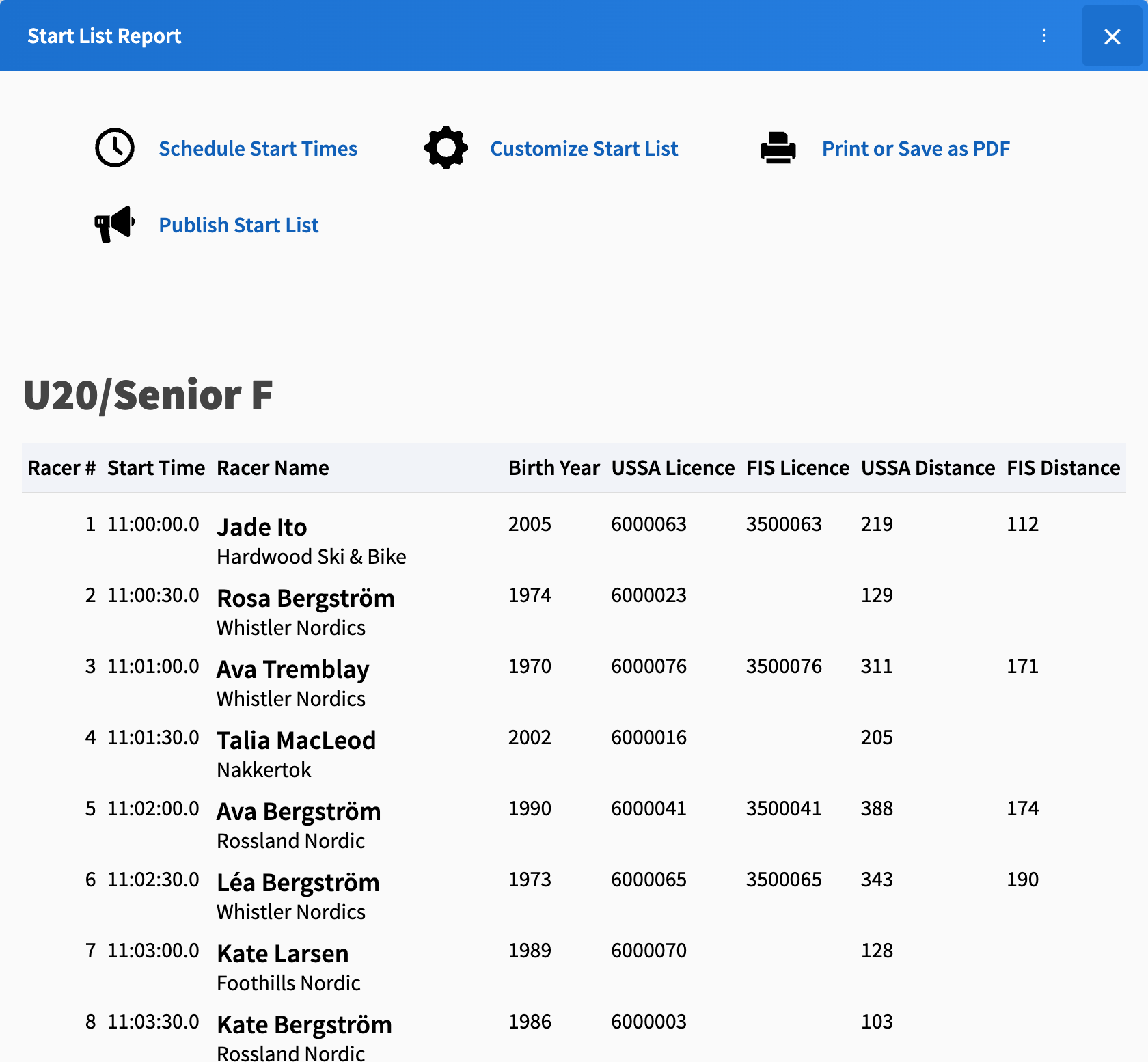
When it is ready, publish your start list.