What Racer Checkin does
Racer Checkin is the pre-race app for bib pickup and registration desks. Open it at tools.zone4.ca/checkin/ and pick the race.
The app is built for dynamic bib handout. Bibs don't have to be assigned before race day. The volunteer takes whichever bib is on top of the pile, types its number onto the racer, and hands it over. Because there is no printed confirmation list to search and no pre-sorted envelopes or bibs to find, each racer is through in seconds.
Any number of laptops can run the app on the same race. Every station sees each check-in within seconds, and a bib or chip that is already taken is refused on every station.
Checking a racer in
- Type the racer's name in the search box. Results start at two letters and narrow as you type. You can search by first name, last name, or both ("sarah mi" finds Sarah Mitchell). Typing a number searches bib numbers instead.
- Racers who don't have a bib yet are listed first. Racers who are already checked in are shaded green and show their check-in time.
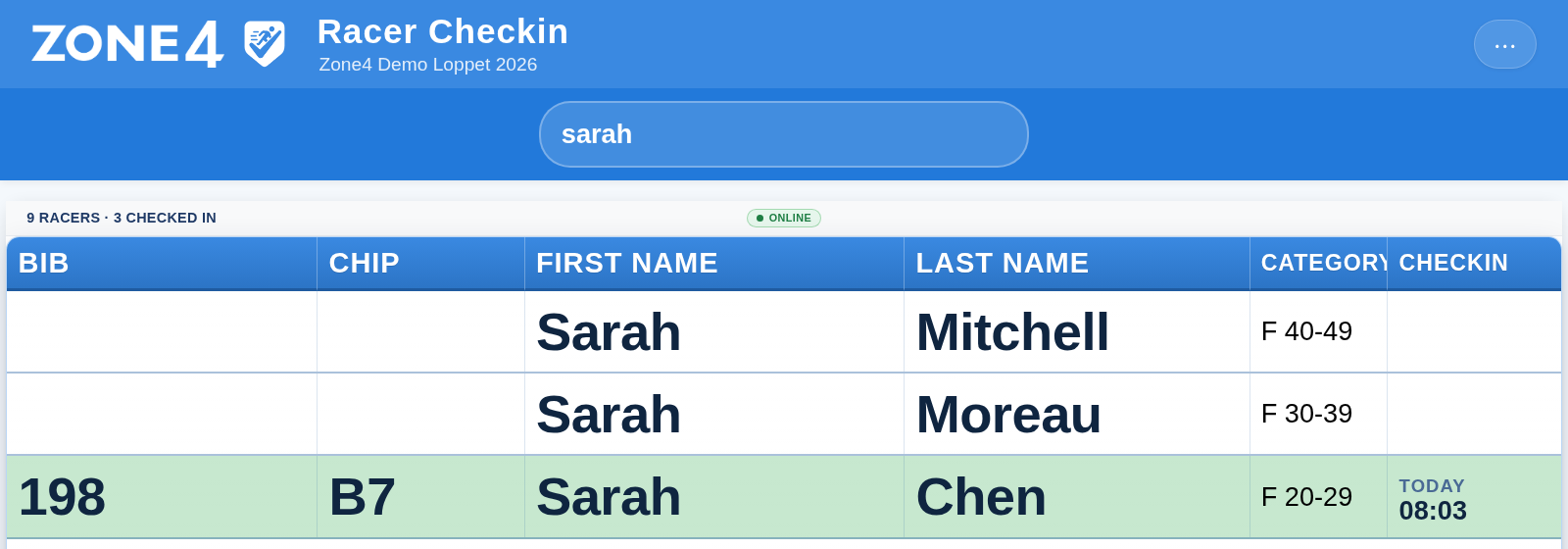
- Click the racer's Bib cell and type the number of the bib you are handing out. Press Enter to save or just click back on the search for the next person. You can also click Tab to save and move to the next editable cell if you are entering both Bibs and Chips separately.
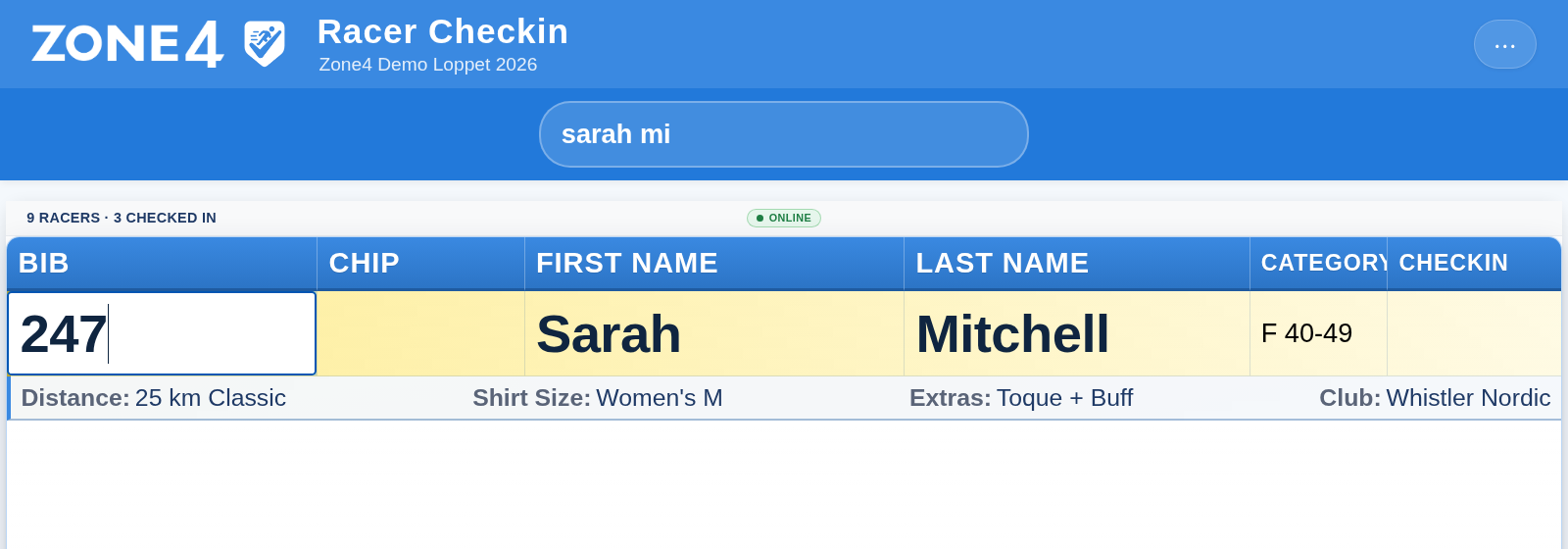
Saving a bib checks the racer in and stamps the check-in time. The row turns green once the server confirms the save. To undo a check-in, clear the bib and save.
If the bib or chip is already assigned to another racer, the cell turns red and the save is refused until you change or clear the value.
Handing out swag with Line 2
Clicking a row also opens its Line 2 panel underneath. Line 2 shows the extra fields you have chosen for it, such as distance, shirt size, or the extras the racer paid for, so the volunteer can hand everything over in one stop. Line 2 is great for a large number of fields as values are simply appended so missing values don't take up column space.
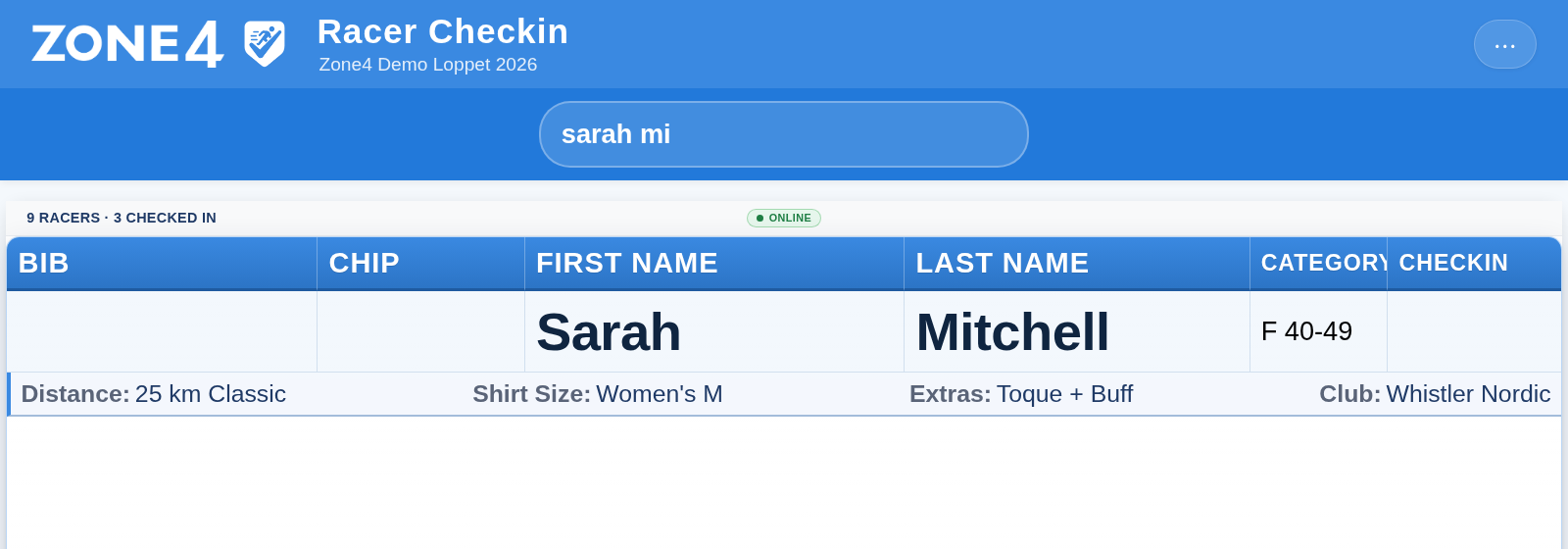
Which fields appear on Line 2 is set in the configuration, below. Line 1 fields are also configurable but take up column space so use line 1 sparingly to keep it easy to use for your volunteers.
Chips
If your race uses GoChips, the Chip column works like the Bib column. Chip numbers are one letter followed by one or two digits, such as A12, and letters are capitalised as you type. See Assigning Chip Numbers to Racers for other ways to assign chips.
Safety First
The app will prevent you from continuing if you lose your internet connection and can't save your assigned bibs. This is a safety feature to ensure you don't end up with un-assigned bibs where there is a racer in the race but you don't know what name is attached to that bib. The app shows Online when saves are going through. If the laptop goes offline, or a save fails, the warning turns red and editing is paused, so nobody keeps typing changes that never reach the server. When the connection comes back, click Retry on the warning to send the failed saves.
Configuring the grid
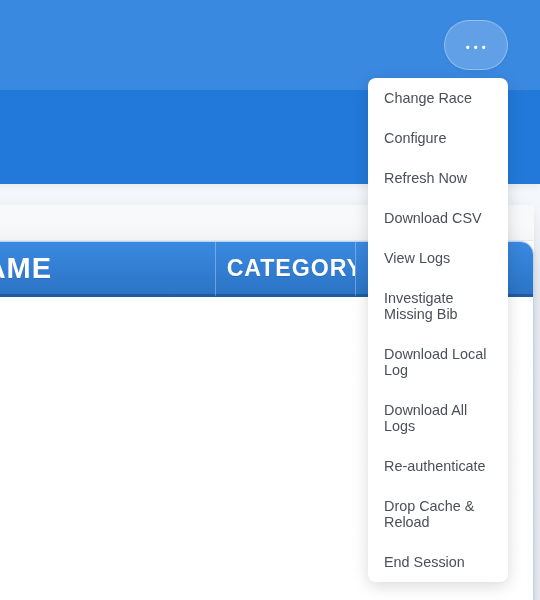
Open the ⋯ menu at the top right and choose Configure.
Synchronize config changes across stations
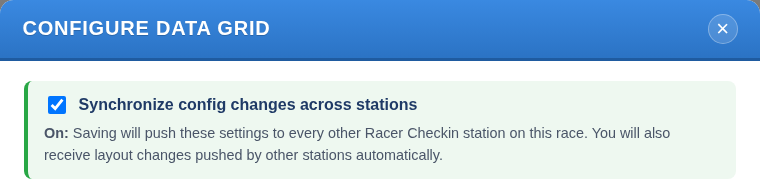
This setting is on by default. While it is on, clicking Save Configuration sends your layout to every other station on the race, and this station picks up layout changes saved by other stations. The usual setup is to configure one laptop and let every other station pick up the same layout.
Turn it off when one station needs its own view. Its changes then stay on that laptop, and changes from other stations are ignored.
The field layout, field names, Line 2 settings and sort order are shared. Station Name and Lock Bib and Chip after save always belong to the station, even with sync on.
Field Order & Visibility
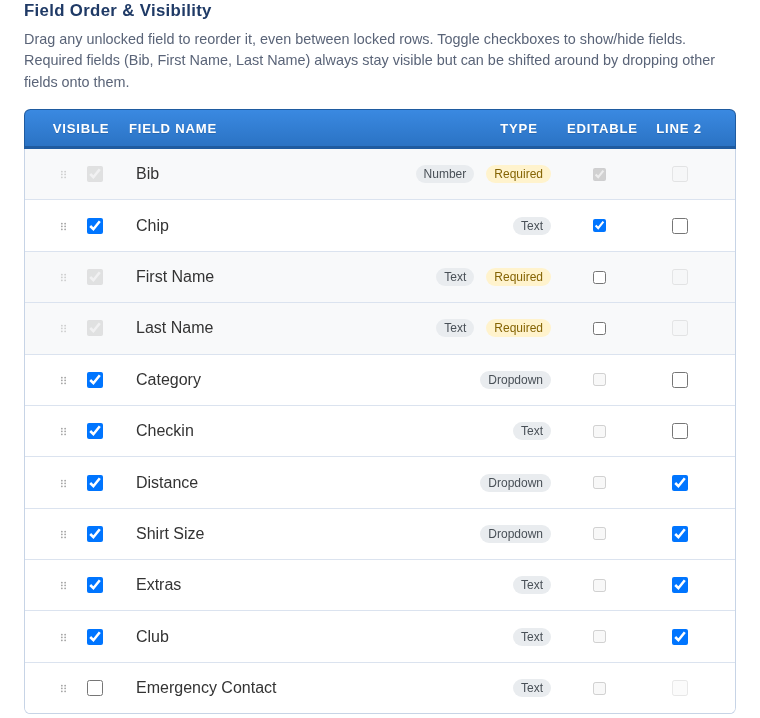
Every field on the race is listed here, including custom registration fields.
- Visible shows or hides the field as a column. Bib, First Name and Last Name are required and can't be hidden.
- Drag a field by its handle to change the column order. Required fields can't be dragged, but other fields can be dropped between them.
- Field name: click a name to rename the column at the checkin desk, for example to shorten "Emergency Contact Phone" to "Emerg." Clear the box to go back to the race's own name. Renaming here doesn't change the race.
- Editable lets volunteers change the field in the grid. Bib is always editable, and the check-in time is set automatically. Text and number fields can be made editable. Other field types are read-only as option fields can affect start and course groups which should not be attempted in the checkin app - for course or startlist changes, use the regular timing app interface.
- Line 2 moves the field out of the columns into the panel that opens under a row. Line 2 fields are read-only.
A field has to be visible before it can be made editable or moved to Line 2. Hiding a field also takes it off Line 2.
Station Name
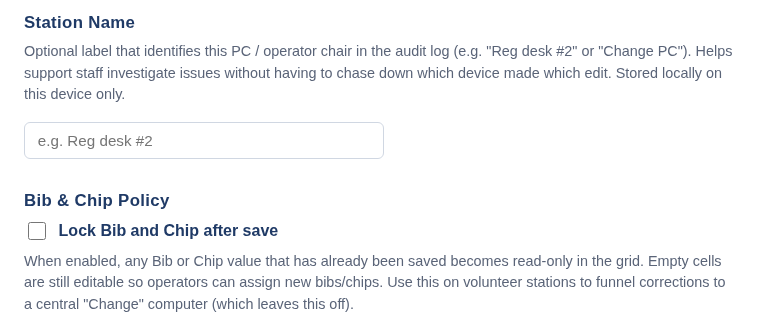
An optional name for this laptop, such as "Reg desk 2" or "Change desk". It appears in the activity log next to every change made here, which makes it much easier to work out later which desk assigned a bib. It is saved on this laptop only.
Lock Bib and Chip after save
With this setting on, a bib or chip that has already been saved can't be changed from this station. Empty cells can still be filled in, so volunteers can keep checking racers in.
If you are using this feature, you will likely need one change desk, where an experienced person handles swaps and corrections. This setting belongs to each station and is never synced.
Hide Line 2 fields that have no value
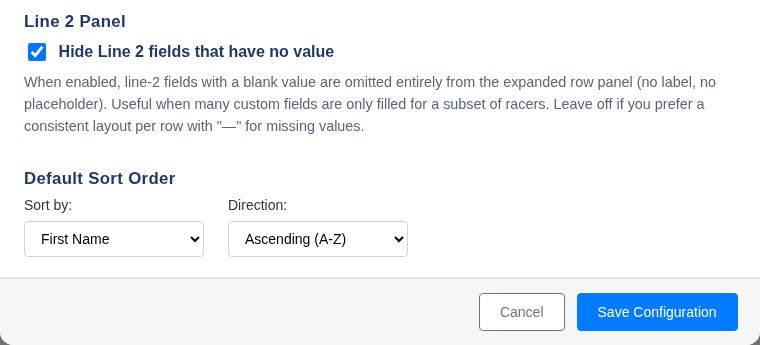
This setting is on by default. Line 2 fields that are blank for a racer are left out of their panel. Turn it off to show every Line 2 field on every racer, with "—" for blanks, so each panel has the same layout.
Default Sort Order
Chooses the field and direction for sorting racers in the grid. You can sort by any visible field.
Other menu items
- Change Race goes back to the race list.
- Refresh Now reloads the racer list from the server. The app keeps itself up to date, so this should never be needed unless there are unknown connection problems.
- Download CSV downloads the racers with the columns currently shown.
- View Logs shows the activity log of check-ins and changes from every station, and Download All Logs downloads it.
- Investigate Missing Bib searches the activity log for a bib number and shows who it was assigned to, when, and from which station. Use it when a bib turns as unassigned and you want to try and figure out which volunteer likely handed out that number and what searches they were making around that point in time as sometimes you can find the unassigned racer by examining the volunteers logged activity. The investigate functions perform a series of checks to automatically narrow this down and find potential matches.
Use Drop Cache & Reload or Re-authenticate only when Zone4 support asks you to.