Set the open and close dates
Open your registration form and select Publish.
Under Registration Dates, set the Open Time and Close Time, including both the date and time. Use the date picker to select the whole date; changing only the year may revert.
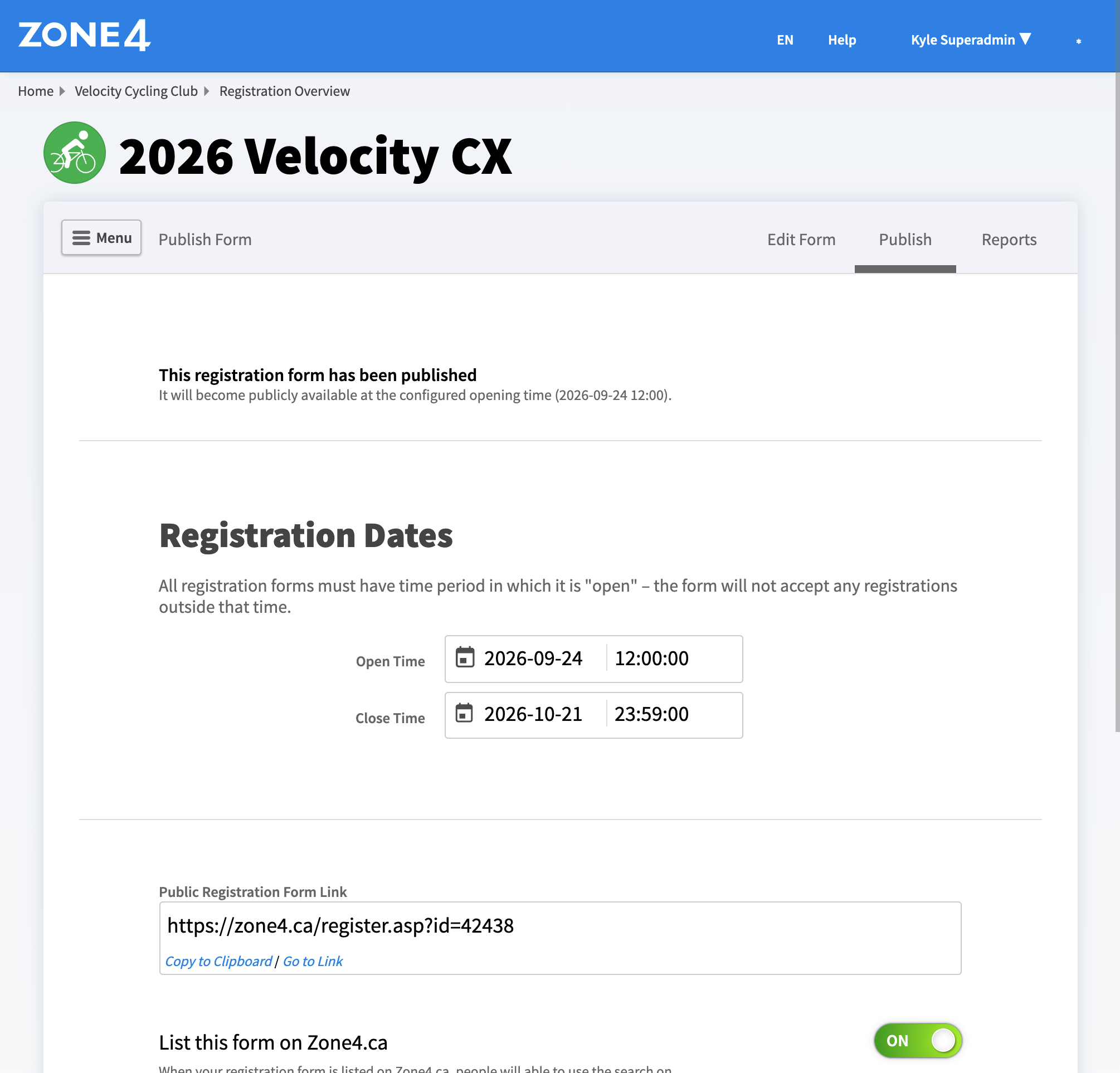
An approved form accepts registrations between its open and close times. You can change those times after the form goes live. Settings may also display the dates, but edit them on Publish: changes made in Settings may not save.
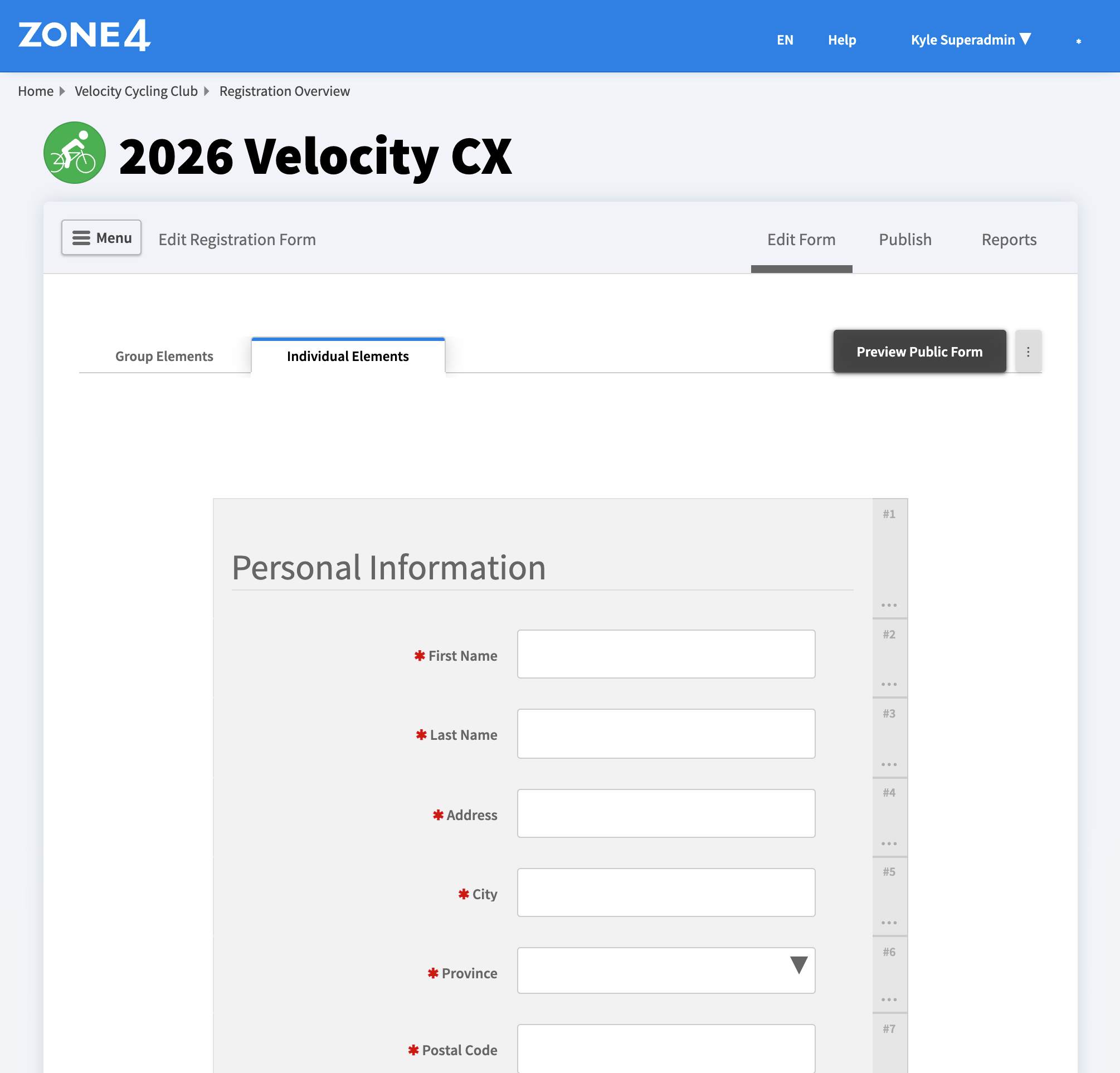
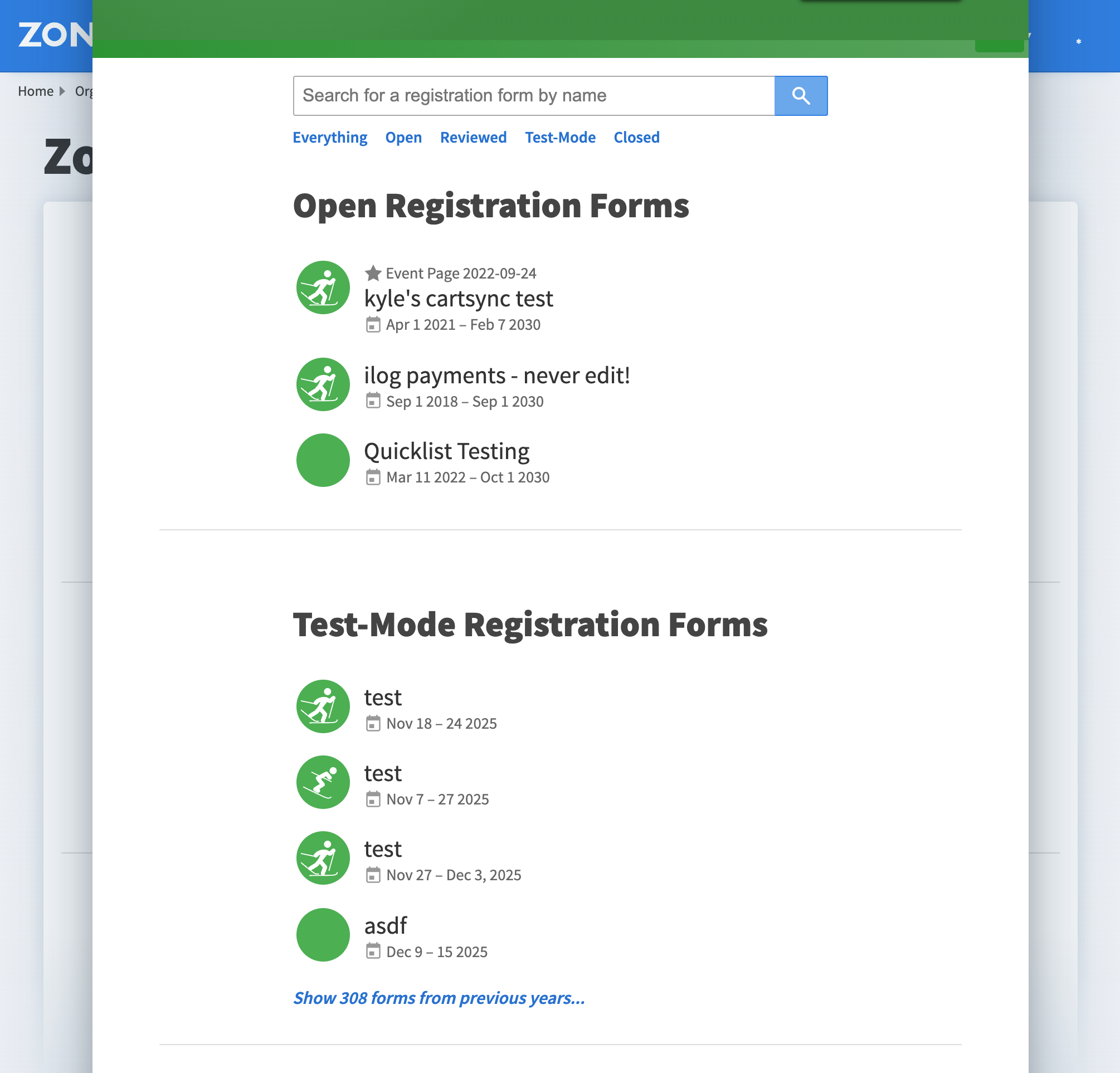
If your draft form is missing from the usual registration list, look under Test-Mode. A form without open and close dates may also be unavailable to preview. Open it, set both dates on Publish, and try Preview again.
Close registration early or pause it
On Publish, move the Close Time into the past. This stops new registrations. To pause sales temporarily, set a new future close time when you are ready to re-open. If the form stays closed for more than 30 days, ask Zone4 to re-open it before changing its dates again.
For a cancelled event, close registration first. If people have already registered, follow Refunding Registration Fees for the payments and contact registrants about the cancellation. Closing the form does not refund existing registrations.
If only today's activity is unavailable, but people should still be able to buy for future dates, leave the form open and add a prominent notice on the form explaining the restriction.
Re-open for late entries
If the form closed less than 30 days ago, set a new future Close Time on Publish. The same registration link will work again. You can keep it out of Zone4's public listings while sharing that link with a few people; see How do I re-open a closed registration? for those steps.
If the form closed more than 30 days ago and the date controls are locked, email support@zone4.ca with the form name and the new close date you want. Zone4 must unlock it first.