Use this panel to pick an output, choose its graphic, check it in the preview, and send it live.
Preview first, then publish
Editing the preview does not change what viewers see. Click Update Live Output when the preview is ready.
Open Broadcast for the race
Open Broadcast, sign in and select the race. The first time, Zone4 may ask you to authorize Broadcast.
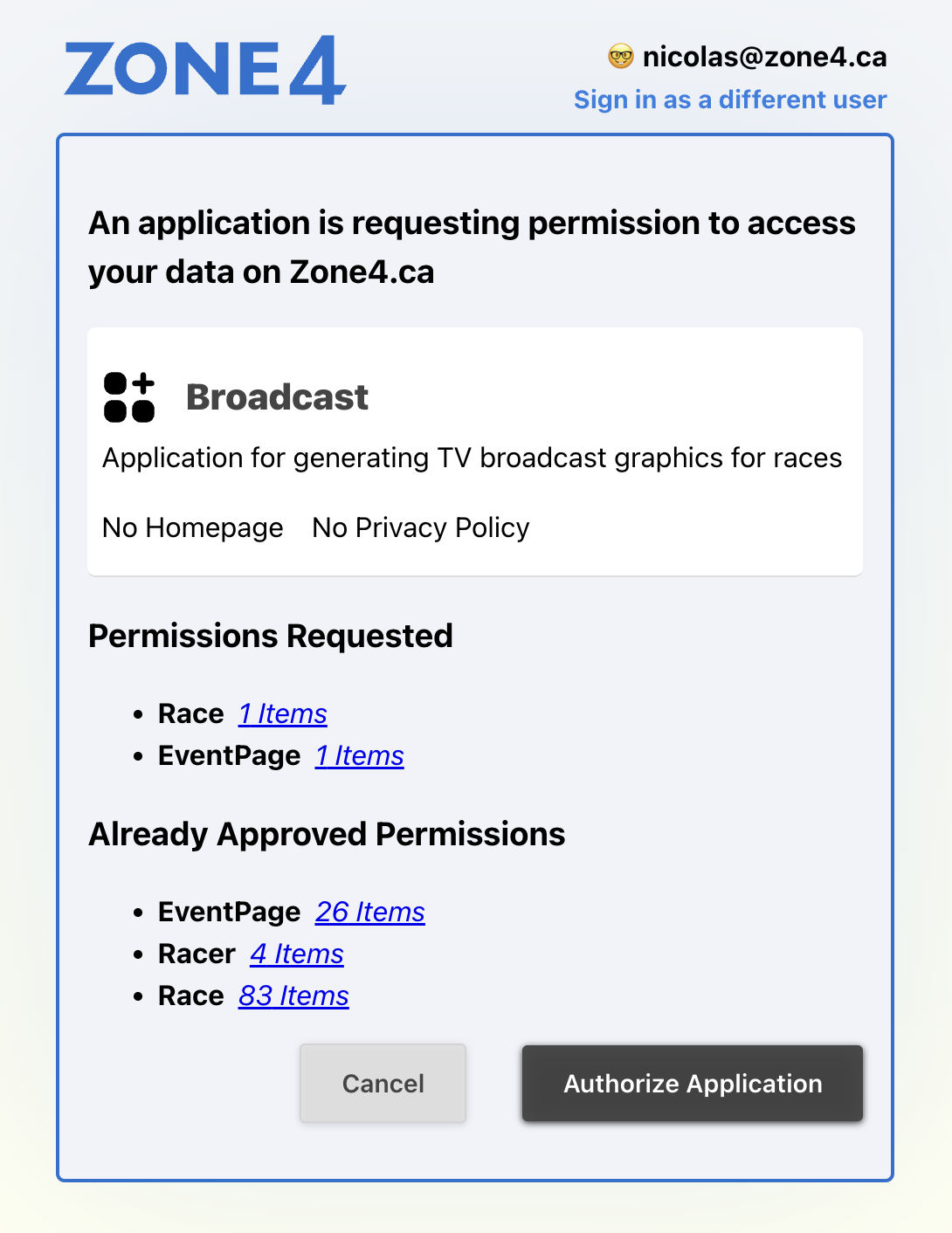 Confirm the signed-in account and authorize Broadcast.
The control panel
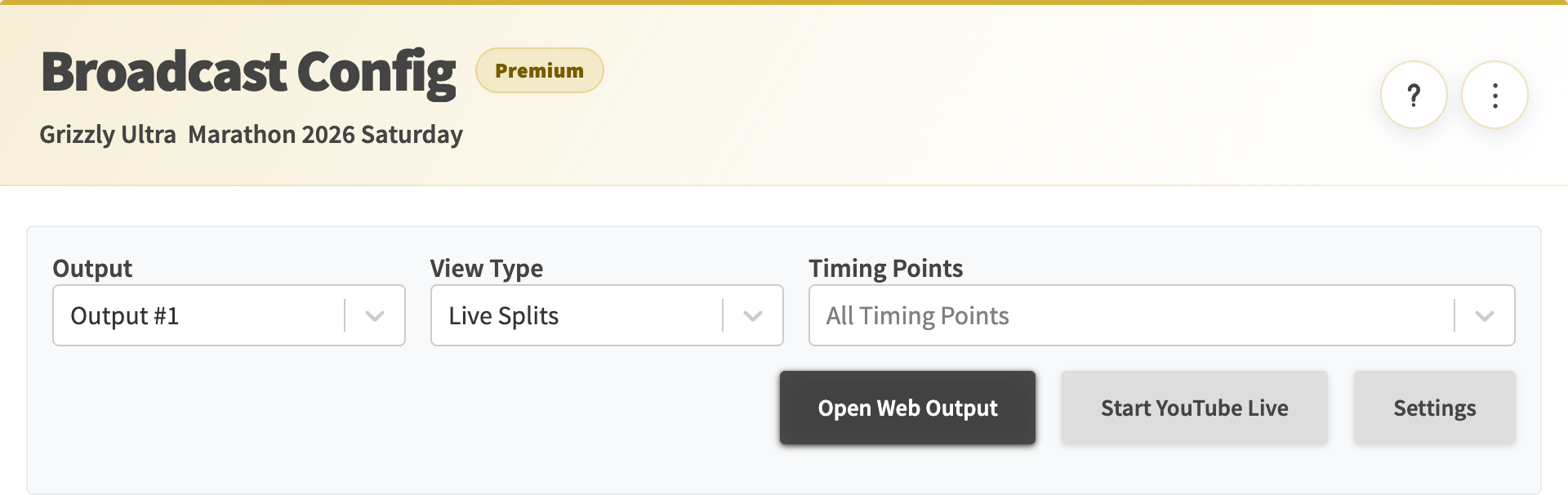 Race-wide actions and Help at the top, the selected output below.
Header
| Control | What it does |
|---|---|
| Help (?) | Opens this help in a new tab. |
| Race actions (⋮) | Race-wide commands that refresh race data. |
| Populate Racers | Reloads racers after athletes or their public fields change. |
| Populate Groups | Rebuilds result groups after group rules or racer data change. |
| Re-calculate calcs | Recalculates results when rankings look stale. |
Output
| Control | What it does |
|---|---|
| Output | The browser source you are editing. Each output has its own URL and graphic. |
| Add Output | Adds an output. Use one per layer in OBS, vMix, the video app or a venue screen. |
| View Type | The graphic to show. The list depends on the event’s package. |
| Timing Points | Limits the crossings the views offer. Empty means all. |
Publishing
| Control | What it does |
|---|---|
| Preview | Shows the output at its resolution, scaled to fit. |
| Update Live Output | Sends the preview to the live output. Click it after every change. |
| Clear | Empties the live output right away. Check the output number first. |
| Open Web Output | Opens the output page. Use its URL as a transparent browser source in OBS or vMix. |
| Start YouTube Live | Opens the Zone4 video app to stream to YouTube or the event page. |
| Settings | Opens Broadcast Settings. |
 Update publishes the preview. Clear empties the output.
New outputs start empty
A new output shows nothing until you choose a view and click Update Live Output.
Crossing distances
Live Splits shows each crossing’s Distance (km) from the race’s Course Setup. Broadcast has no distance setting of its own.
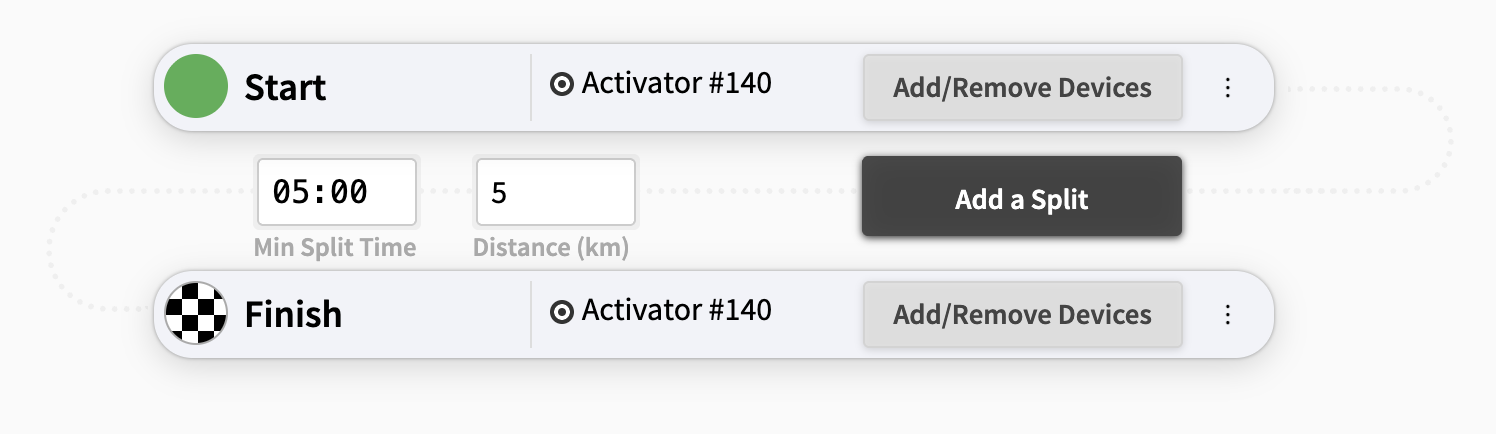 Enter each crossing’s Distance (km) in Course Setup.
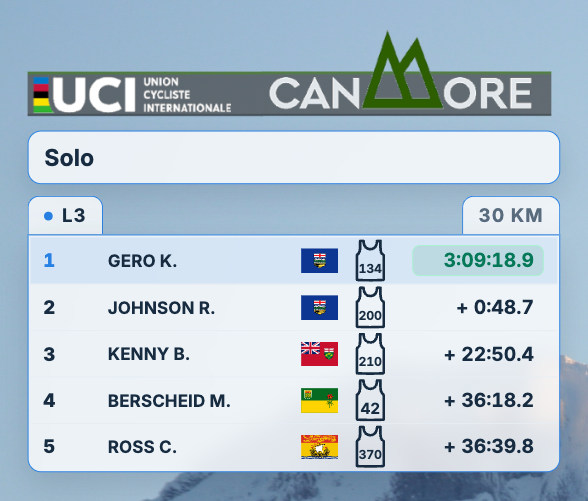 Live Splits shows that distance for the selected crossing.