Shows a prepared image, such as a schedule, map, message or sponsor slide.
Available in: Lite · Standard · Premium
Set it up
- In Settings, upload your images to the Image View Library.
- Choose Image View and pick an image.
- Drag and resize it in the preview.
- Click Update Live Output.
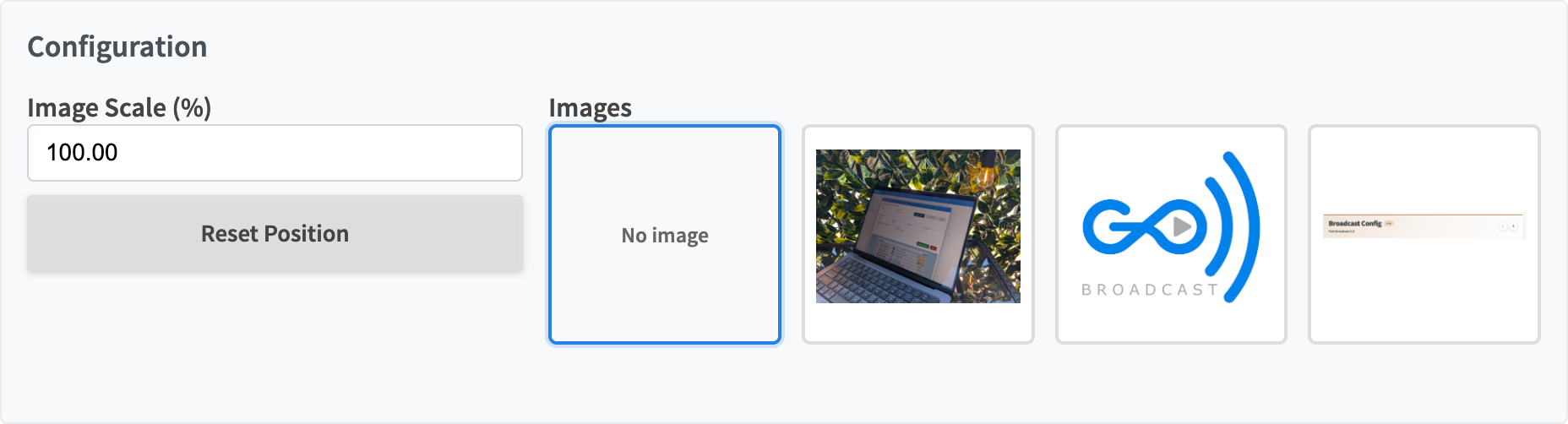 Image View configuration.
Controls
| Control | What it does |
|---|---|
| Select an image | The library image for this output. Each output can show a different one. |
| No image | Publishes an empty output. |
| Image Scale | Size in percent. 100% fits the screen. |
| Image position | Drag the image in the preview. Drag a corner to resize it. |
| Reset Position | Centres the image again. |
| Previously selected image | Shown when the image was removed from the library. It stays on air until you publish another. |