Get the Zone4 Go Android App
Supported Devices
Please see the post about what devices are supported: https://help.zone4.ca/kb/what-android-phones-work-with-gochip/
Install the Zone4 Go Android App
The Zone4 Go Android app can be installed from the Play Store: https://play.google.com/store/apps/details?id=ca.zone4.dataacquisition
First Steps
Open the Zone4 Go App
On devices configured by Zone4, a Zone4 Go icon should be on the home screen, tap on the icon to open the app.

If the Zone4 Go app is not on the homescreen:
- open the app drawer, on modern Android devices, this is typically done by swiping up on the hoke screen
- scroll to find the Zone4 Go icon
- tap on the icon to open the app

Permissions
- once the Zone4 Go App is open, several permission dialogs will appear
- tap Grant permission or Allow for each permission


Device Name and Club Pin Code
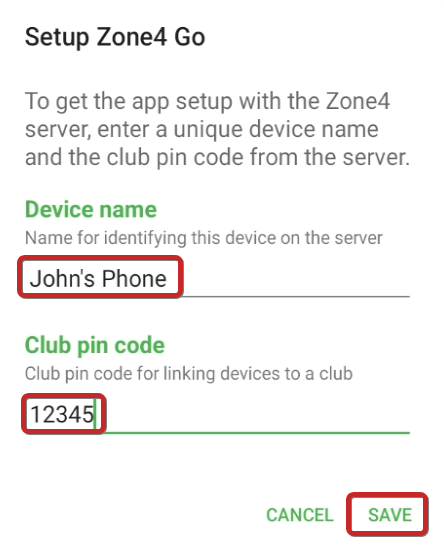
- once the permissions have been allowed, a dialog will appear for essential setup
- enter a Device name
- enter the Club pin code
- tap Save
Keypad
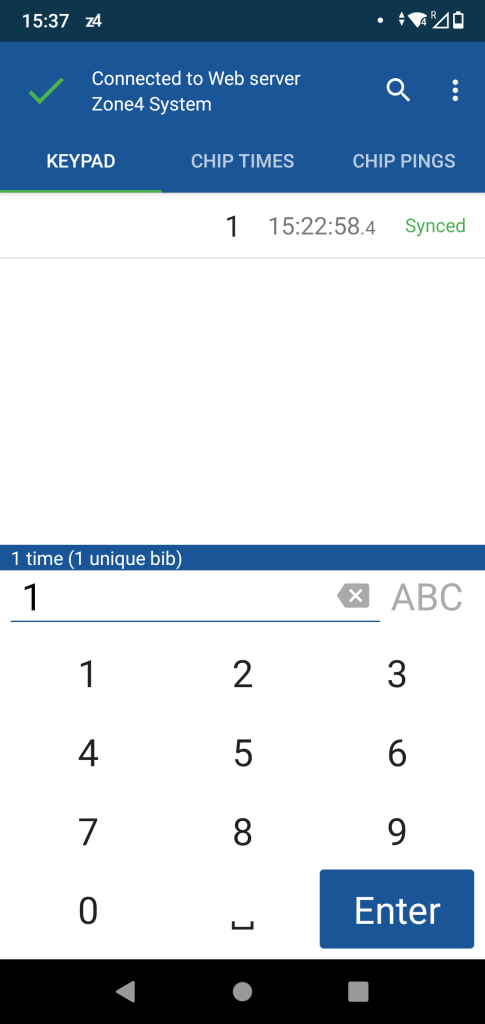
The Keypad is the manual data entry option on the Zone4 Go Android App. This can be used either as a backup timing system or as the primary timing system for small events or events with low volume.
- (optional) enter bib number of racer as they approach the timing point using the numbers on the keypad
- tap Enter as the racer crosses the timing point to record the bib number and time
- the bib number and time will appear in the list of times
- Keypad indicates the time was created by the in-app keypad
- Touch indicates the time was created by tapping the Enter button
- Synced indicates the time has been pushed to the configured Zone4 server while Local indicates the time has been created and is stored locally but has not yet been pushed
- once a time as been created, it can neither be modified or deleted
Chip Times
The second option is the Chip Times option. This is simply a list of all chip times that the phone has recorded. Chip numbers are displayed on the far left followed by the recorded time (note that this is not the time that the phone read the chip, but rather the time that the chip recorded when it crossed a loop). This is followed by the activator id number identifying the loop it crossed and lastly whether that time has been synced with the Zone4 server or not. As with Keypad times and Chip Pings you can use the search function to find individual chip times.

Chip Pings
The third and last option are the chip pings. Chip pings are recorded when any GoChip comes within approximately a 10m radius of the phone. This is not an accurate timing method, but can be very useful as a backup or for tracking racers in longer events such as ultra marathons or adventure races.
You will notice, just like with Keypad and Chip times, chip pings will display a chip number, time and whether that time has been synced with the web server. As with Keypad times and Chip Pings, you can use the search function to find times for individual bibs.
Search and Filter Times
By Bib and/or Time
Filters are simple a way of narrowing down the number of times to search through and can be very useful when trying to track the number of racers who have been through an on course point.
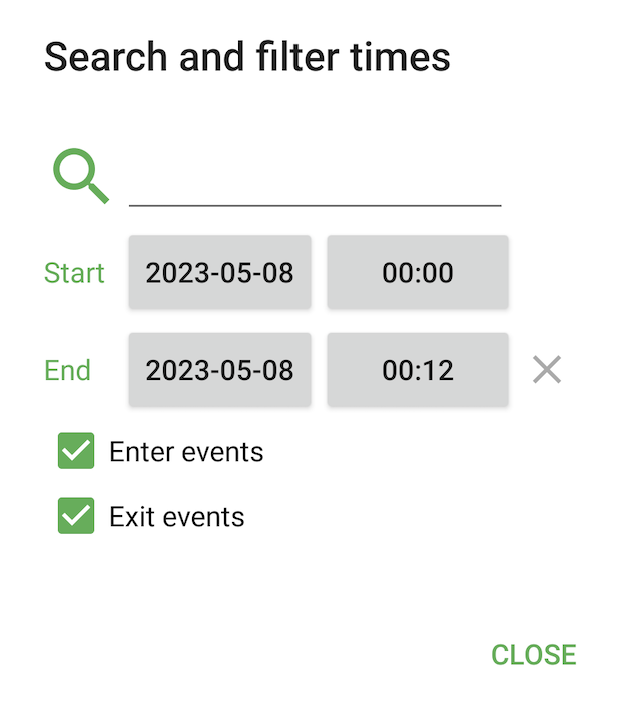
- First select the search icon on the top right hand.
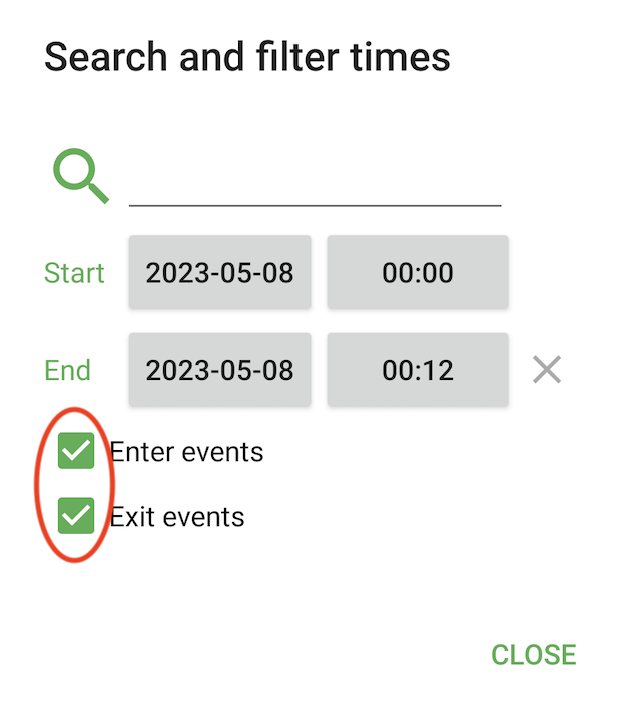
- Once there you can select the window that you would like times to be displayed for. An example of this is pictured on the right.
- When these are set, you will only be able to see racers who have a crossing event during that time period. This applies to every data entry mode (Keypad, Chip and Pings) and the search function. This can be very useful if you want to keep track of how many racers have been through an on course point.
By Enter/Exit Events
You will notice both an enter and exit events on the filter times screen. These are only relevant for Chip Pings. Enter events are the first time that a chip gets read. Exit events are recorded when a chip, that has an entry time, is not read for 3 minutes.
Total Times and Unique Times
You will notice at the bottom of each screen a number of times and unique bibs as is pictured below. The first number is the total number of times that have been recorded in the last 24hrs or within your time filter (if they have been set). The second -in parenthesis-is the number of unique bib times that have been recorded in case some have been read twice. If you have set your filters, unique times can become a very valuable way of tracking the number of racers that have come through a certain on course point. This can be especially useful for longer point to point races such as ultramarathons.

Common Settings
To enter the Settings menu:
- tap the three dot menu in the top right corner
- tap the Settings item
Device Name and Club Pin Code
From the Settings menu, the Device Name and Club Pin Code can be updated by tapping on their respective settings items.

Zone4 Server Host
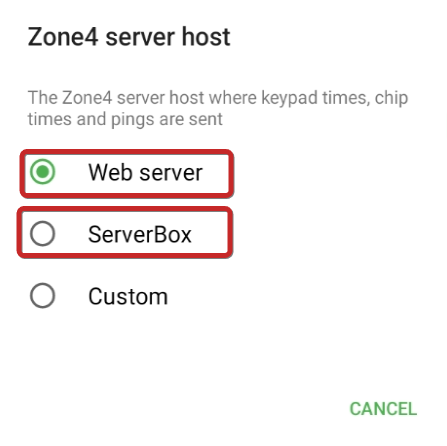
In most cases, and by default, the app should be sending times to the zone4.ca web server. If you are using a Zone4 ServerBox, you will need to change the phone to send times to the ServerBox instead. Inversely, a phone that was previously sending times to the ServerBox but now needs to send times to the web server, will need to be switched back.
On the main screen of the app, the status bar at the top will how which server the app is currently sending times to. This will be one of:
- Web server: the default that should be used in most cases
- ServerBox: when a ServerBox is being used
- Custom: rarely used, for specialized cases

To change the Zone4 server host:
- From the Settings menu, tap Zone4 server host
- in the pop-up, select the desired Zone4 server host