Some of the features in this article, Summit Timer support in particular, require an as-yet unreleased version of the Zone4 Go Android App. These features are currently undergoing internal testing at Zone4 and a public release is expected on June 1, 2025.
Supported Devices
The Zone4 Go Android App keypad can create times from more than just the touchscreen keypad. The keypad has support for the following devices:
- Summit Timers connected with a USB to Serial adapter
- peripheral numberpads or keyboards connected with Bluetooth, USB, etc…
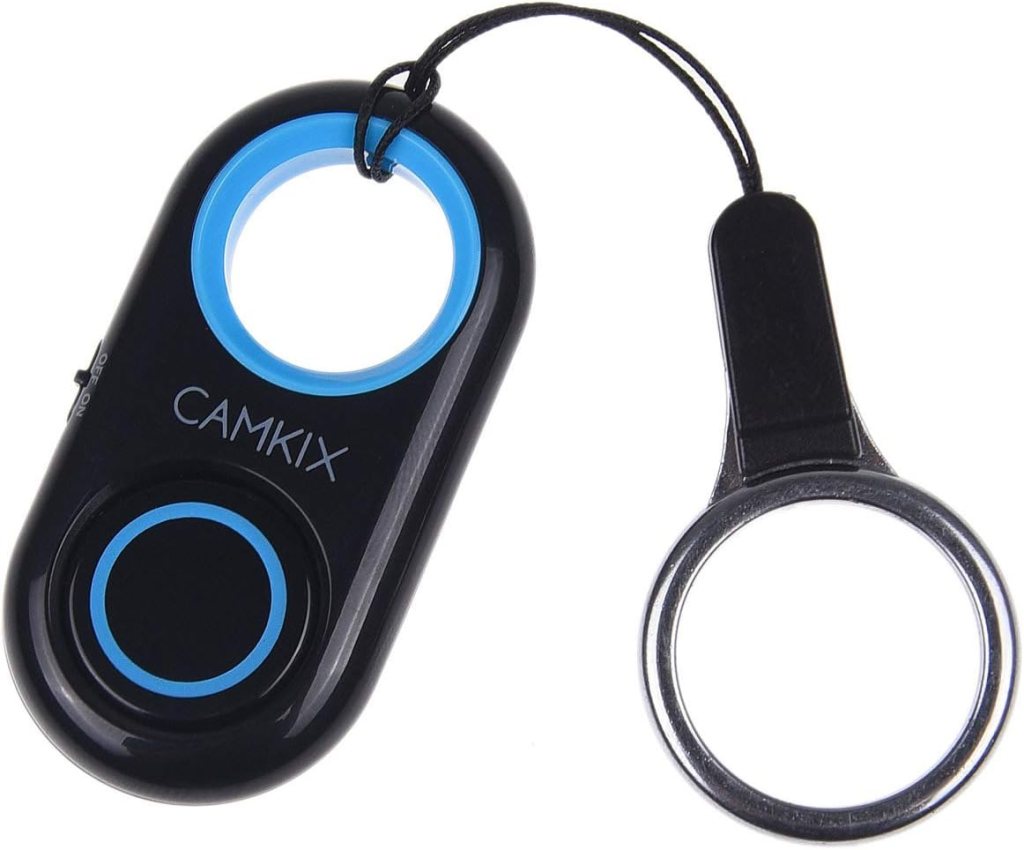
- external camera triggers connected with Bluetooth
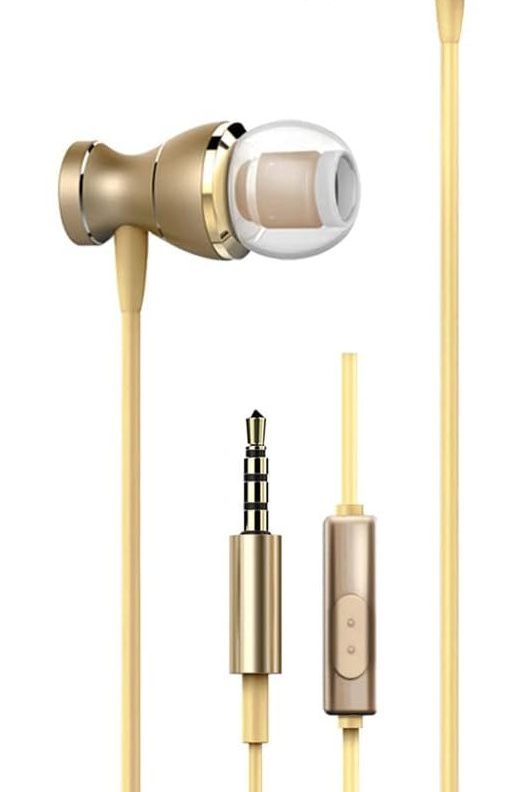
- external devices that generate media play/pause events such as in-line headset remotes
- plungers connected through a specialized adapter
Summit Timers
The main motivation for using a Summit Timer with the Zone4 Go Android app is to provide a simpler, more robust and flexible communication method for the Summit Timer. The 900MHz wireless communication method the Summit Timers use is by far the biggest source of issues when using Summit Timers. The main issues are:
- difficulty getting the radio configured and communicating
- providing adequate battery power and life in adverse conditions
- wireless range and flexibility limitations
By leveraging the simple, robust and flexible communication method provided by the Zone4 Go Android app, the biggest issues with Summit Timers are resolved. Using this method Summit Timers will now:
- communicate directly to the Zone4 Web timing server
- communicate using WiFi and cellular connections
What’s Needed
Android device:
- running Zone4 Go Android App version 17.0.0 or newer (available June 1, 2025)
- with a USB C port


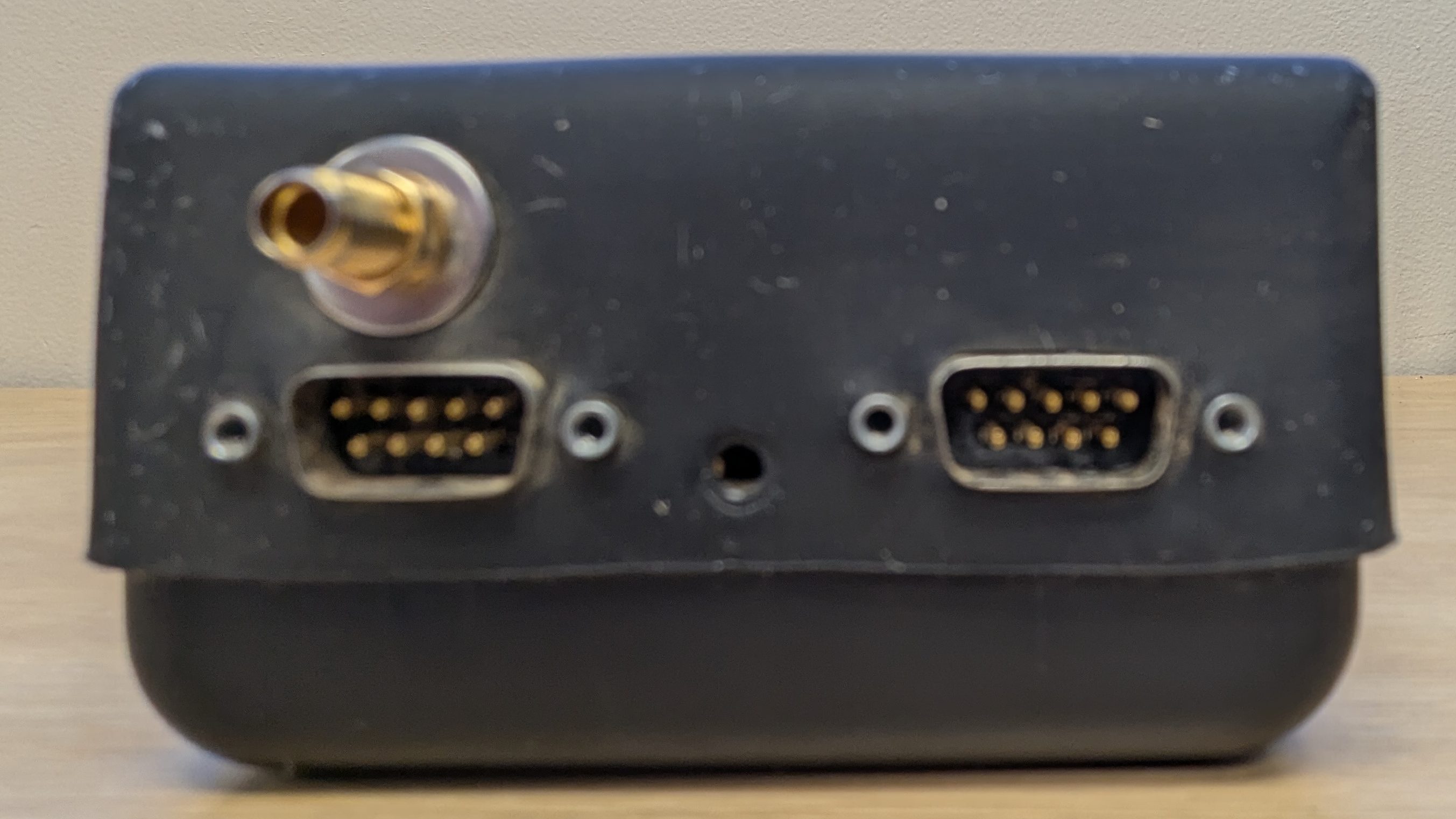
Summit Timer with a Serial port
USB C to Serial adapter with a supported chipset:
- FTDI: FT232R, FT232H, FT2232H, FT4232H, FT230X, FT231X, FT234XD
- Prolific: PL2303
- Silabs: CP2102, CP210
- Qinheng: CH340, CH341A, CH9102

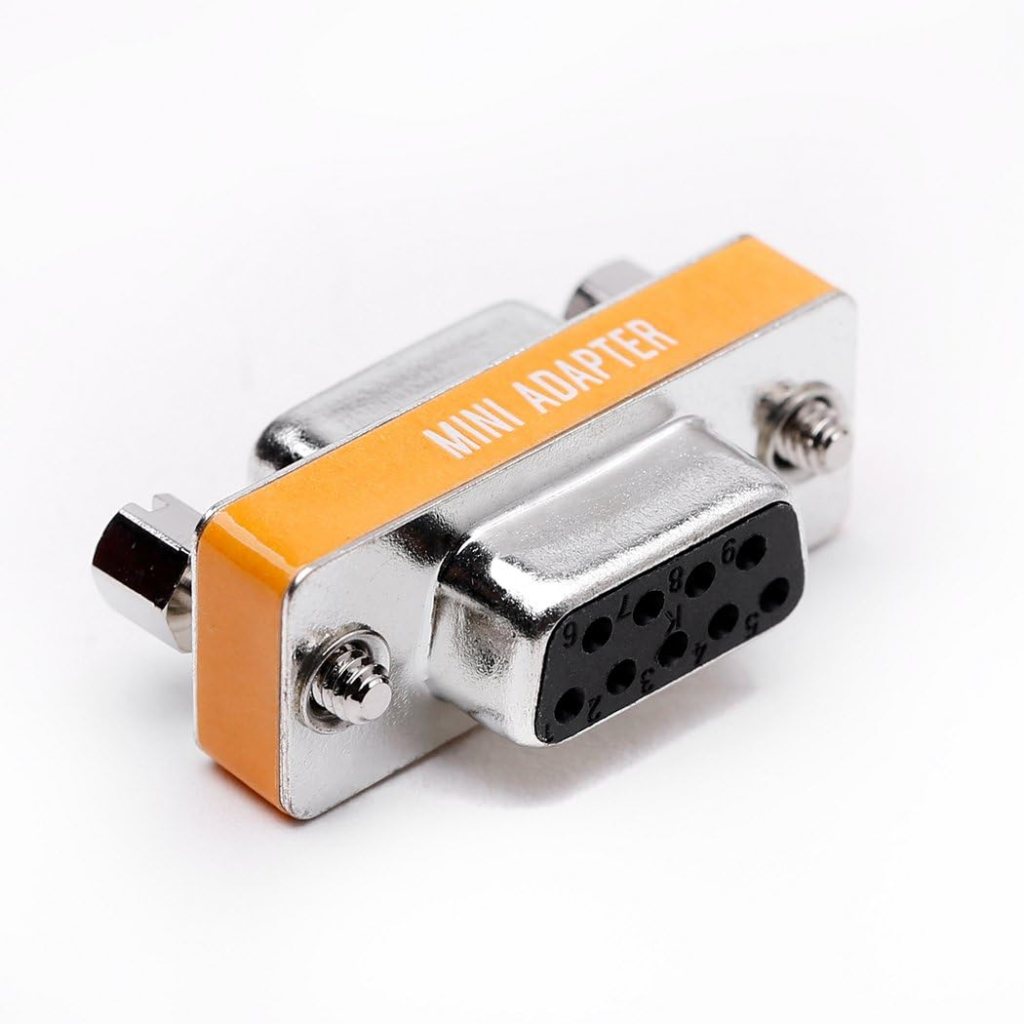
Serial Null Modem female-female adapter
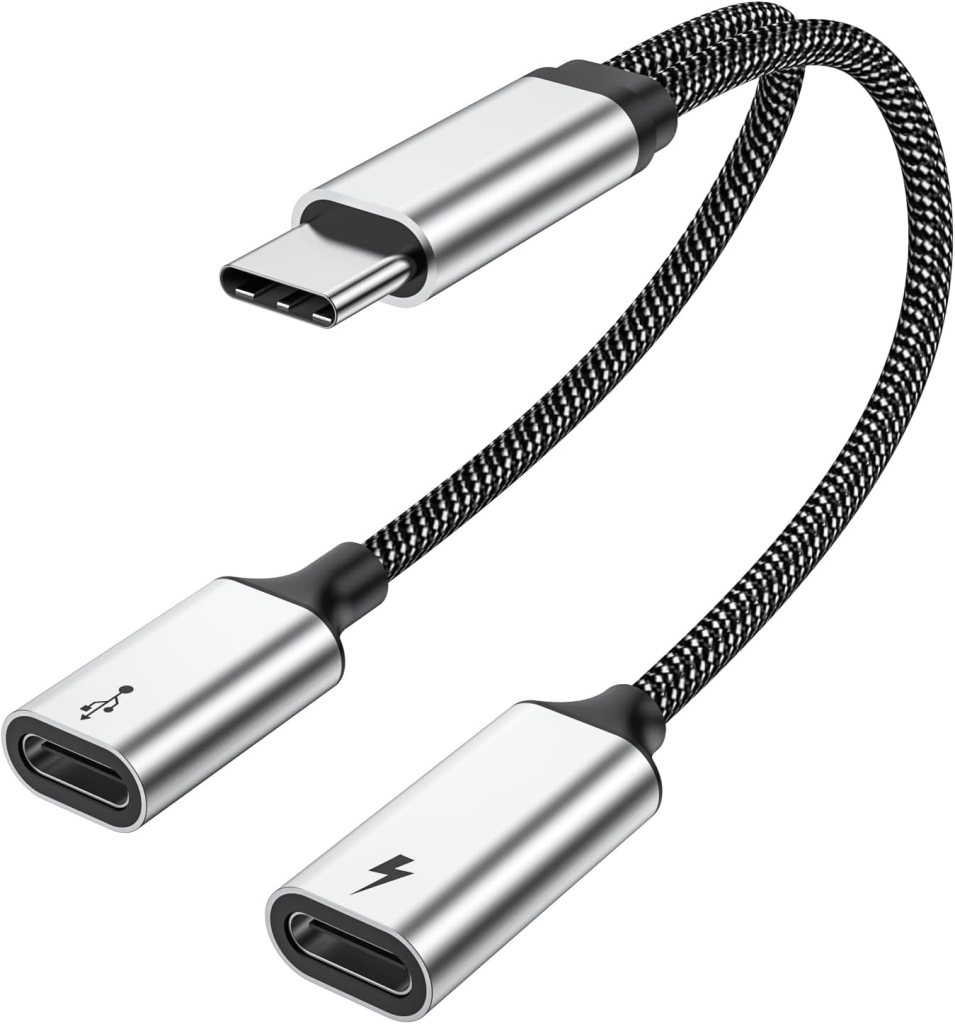
(Optional) USB C power and data splitter for charging the Android device simultaneously
If using one of these splitters, ensure the power connector is always powered otherwise Summit Timer communication might fail. These have also introduced unexpected instability in some cases and further testing is needed.
Configuring a Summit for Serial Communication
- synchronize the time on the Summit Timer:
- Ctrl+5 + Activator GPS sync
- wireless time sync from a ServerBox
- Zone4 Go Android app time sync
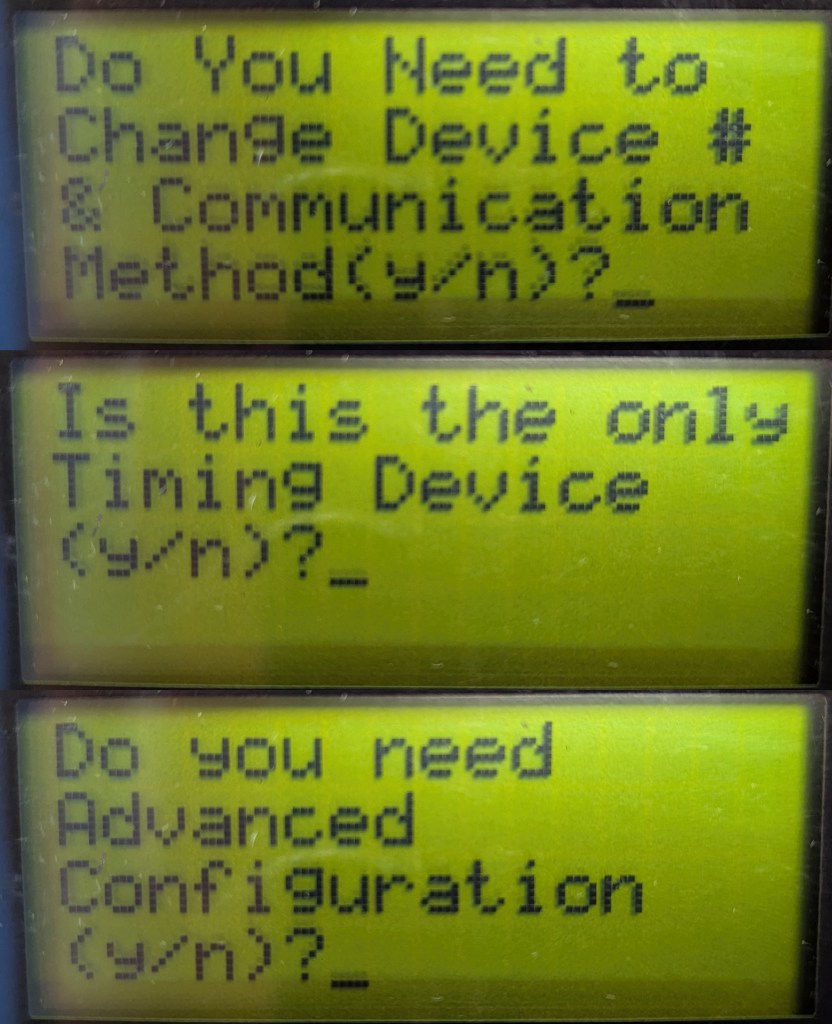
- on the Summit Timer, press Ctrl+6
- Do You Need to Change Device # & Communication Method?
press Yes - Is this the only Timing Device?
press Yes - Do you need Advanced Configuration?
press No
Connecting a Summit to an Android device
- connect the USB C to Serial adapter to the Serial Null Modem female-female adapter
- connect the Serial Null Modem female-female adapter to the Summit Timer Serial Port A
- connect the USB C to Serial adapter to the Android device
- if the Zone4 Go app is not already running, open it
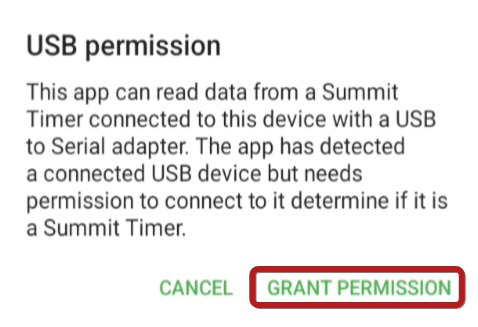
- when permission dialogs open in the app, grant permission to access the USB device

Viewing Summit Times and Finding them on the Zone4 Server
When a time is recorded on the attached Summit, it will be immediately sent to the attached Android device. The time will show on the Android device’s Keypad screen with the source showing as Summit and the Channel the time was recorded on.

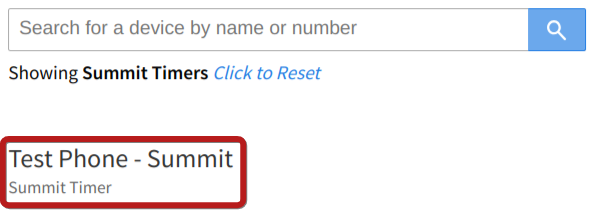
Any Summit times will be pushed to the configured Zone4 timing server, the same as Keypad times. However, Summit times will be attached to a different device than Keypad times. To find the device on the timing server, look for the Keypad Device name with ” – Summit” appended to the end.

Times that were recorded on the Summit Timer before it is attached to the Android device will not automatically be transmitted to the Zone4 Go Android App. All times can be re-transmitted to the attached Android device by pressing Ctrl+8 on the Summit Timer. Note that this will re-transmit all times on the Summit Timer and times the Zone4 Go app has already recorded will be duplicated.
Peripheral Numberpads and Keyboards
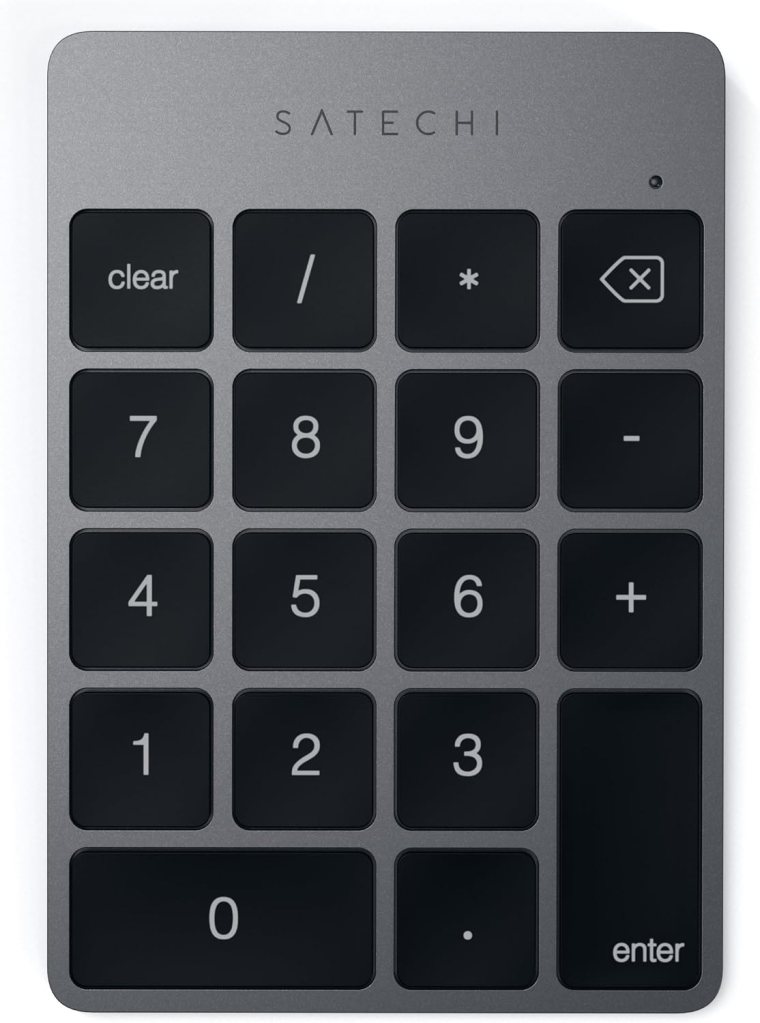
A peripheral numberpad or keyboard can be Bluetooth paired with or USB connected to an Android device running the Zone4 Go Android App. This numberpad or keyboard can be used instead of the touchscreen keypad to provide a better human interface device, particularly in challenging environments.
For example:
- a Bluetooth numberpad is paired with the Android device
- bib numbers typed on the Bluetooth numberpad will perform the same action as tapping the numbers on the touchscreen interface of the app
- pressing the Enter key on the Bluetooth numberpad will perform the same action as tapping the Enter button on the touchscreen interface of the app
Camera Triggers
A peripheral camera trigger can be Bluetooth paired with an Android device running the Zone4 Go Android App. This camera trigger can be used instead of the touchscreen Enter button to provide a better human interface device, particularly in challenging environments.
For example:
- a Bluetooth camera trigger is paired with the Android device
- bib numbers will still need to be entered by tapping the numbers on the touchscreen interface of the app
- pressing the button on the Bluetooth camera trigger will perform the same action as tapping the Enter button on the touchscreen interface of the app
Media Play/Pause Events
A peripheral device that generates media play/pauses events can be connected over 3.5mm audio or USB C to an Android device running the Zone4 Go Android App. This device can be used instead of the touchscreen Enter button to provide a better human interface device, particularly in challenging environments.
For example:
- a headset with an in-line play/pause button remote is connected to the Android device’s 3.5mm or USB C port
- bib numbers will still need to be entered by tapping the numbers on the touchscreen interface of the app
- pressing the play/pause button on the headset remote will perform the same action as tapping the Enter button on the touchscreen interface of the app