Team results
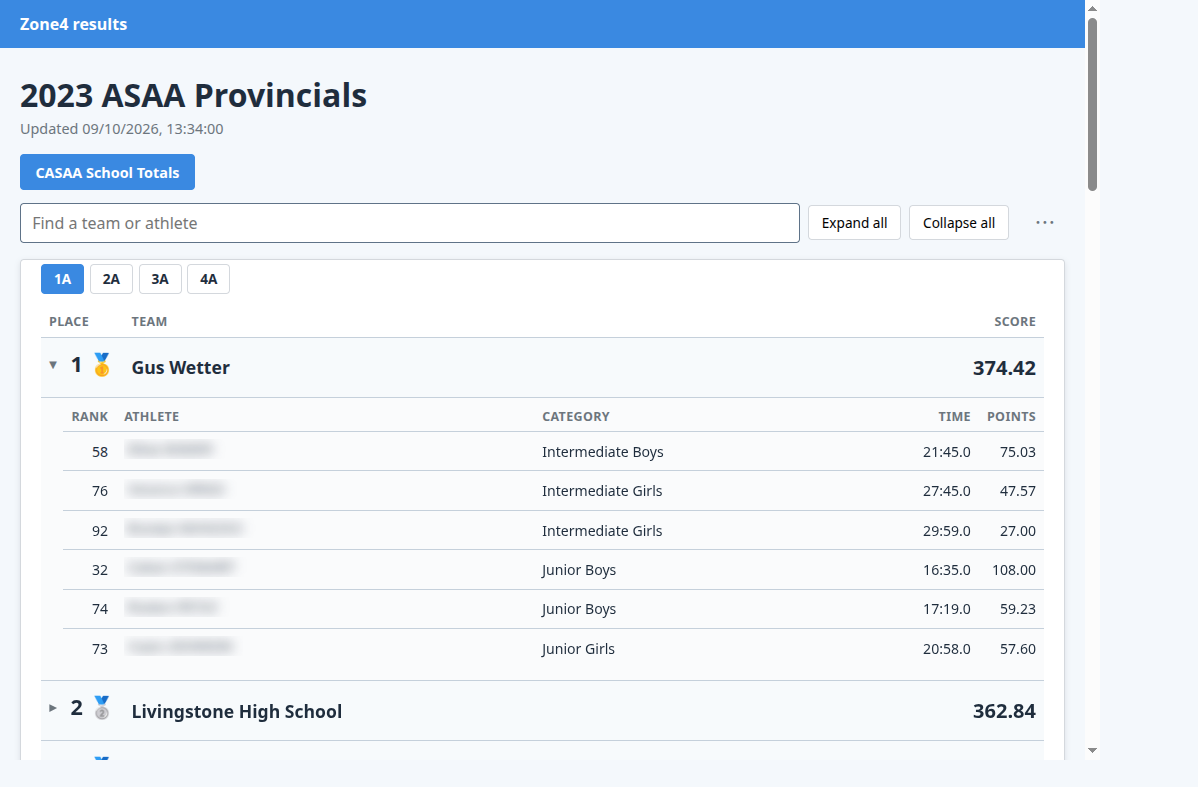
The Team results app scores a race by team, usually a school or a club, and publishes a public standings page. Open it at tools.zone4.ca/teams/ and pick the race. You need to be able to edit that race.
The app reads the race's official results. It does not change them. Saving here stores only the team-results settings.
Set up the teams
On 1. Team setup, choose the field that names the team, such as School. The preview lists every team and how many racers are on it. Save.
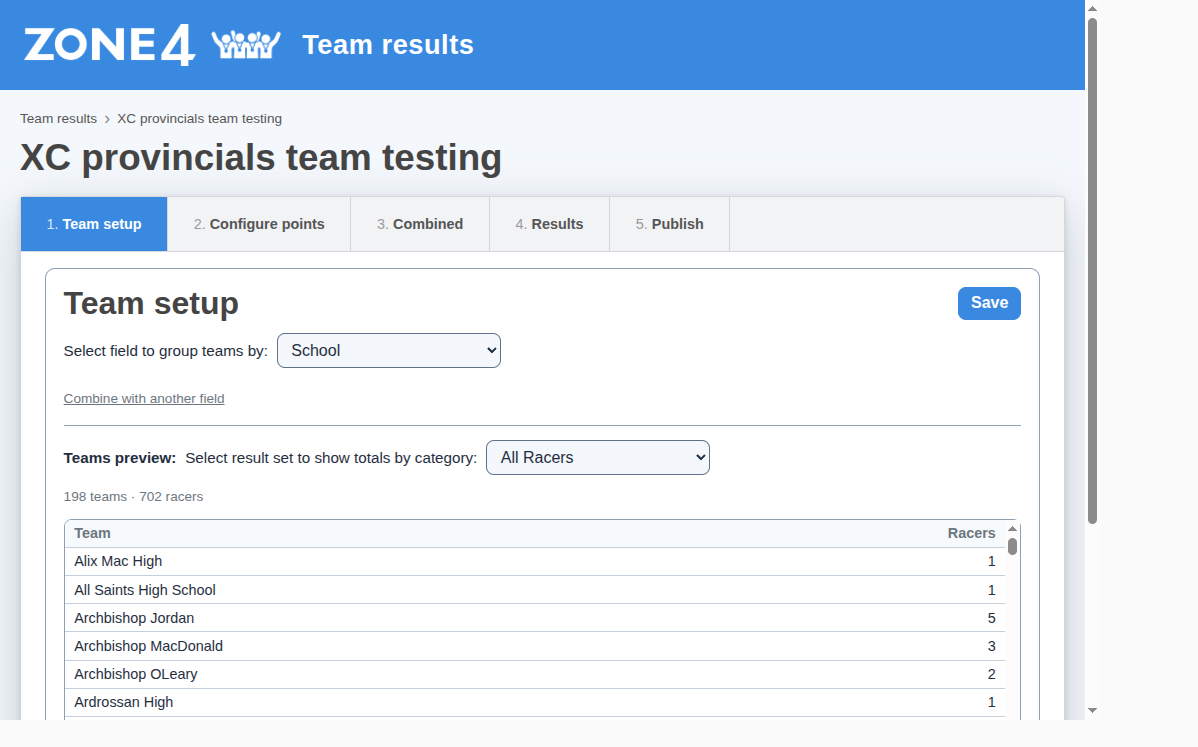
If a team name is built from more than one field, use Combine with another field.
Choose how points are scored
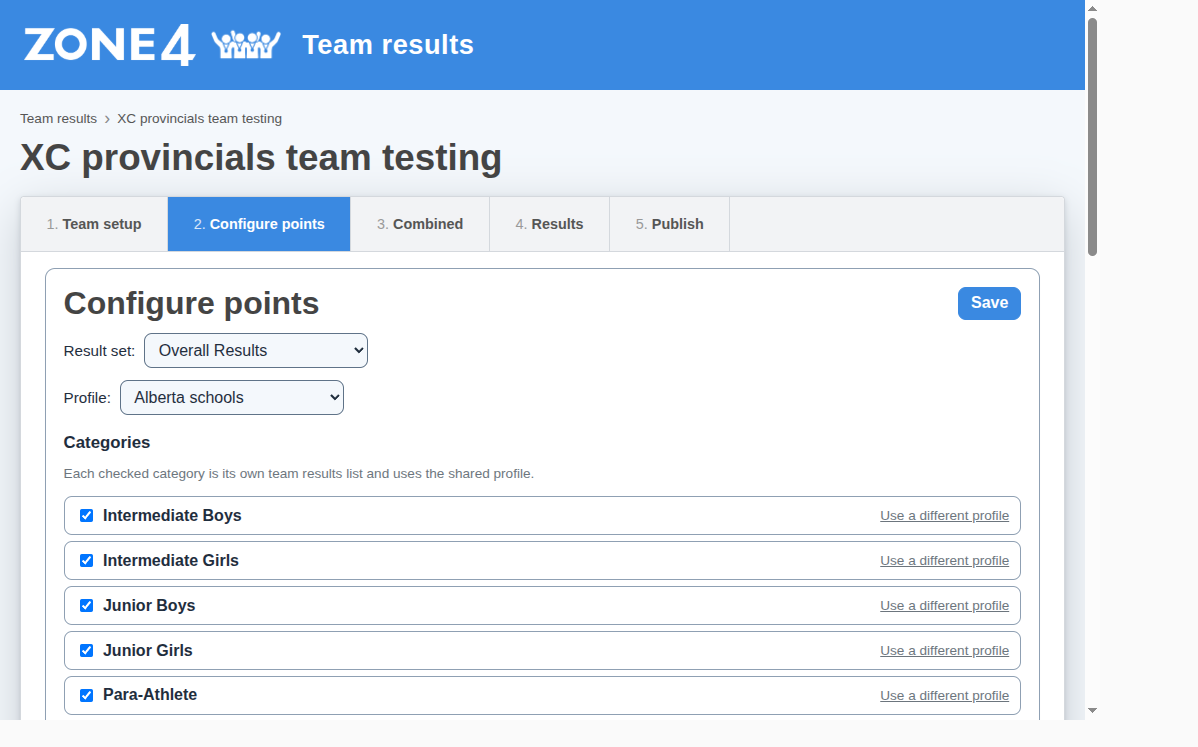
On 2. Configure points:
- Pick the result set. Team scoring uses the place Zone4 gives each racer in that set, the same place the race's results show. Zone4 places new times on its own, so there is nothing to run first. A racer whose time was just added or changed scores once Zone4 has placed them, usually within a few seconds.
- Pick a profile. The presets are NCAA XC, NFHS XC, World Athletics XC, Athletics Alberta clubs, OFSAA, USATF masters, and Alberta schools.
- Tick the categories that should have their own team list. Each one uses the shared profile unless you choose Use a different profile for it.
- Save.
The shared profile is the rule set: whether a high or a low score wins, how many runners score, and how ties break. The note beside each setting describes the choice that is selected.
Combine categories
On 3. Combined, add a view that rolls category results into one list, such as school totals. Two ways to combine them:
- Add runner points adds each scoring runner's category points into the team total. Alberta schools works this way.
- Points for each category place turns the team's place in each category into points from a place table, then adds those. OFSAA banner scoring works this way, and Use OFSAA table fills in that table.
Separate by ranks teams only against others with the same value, such as the same class. A runner's category points stay as they are.
Read the standings
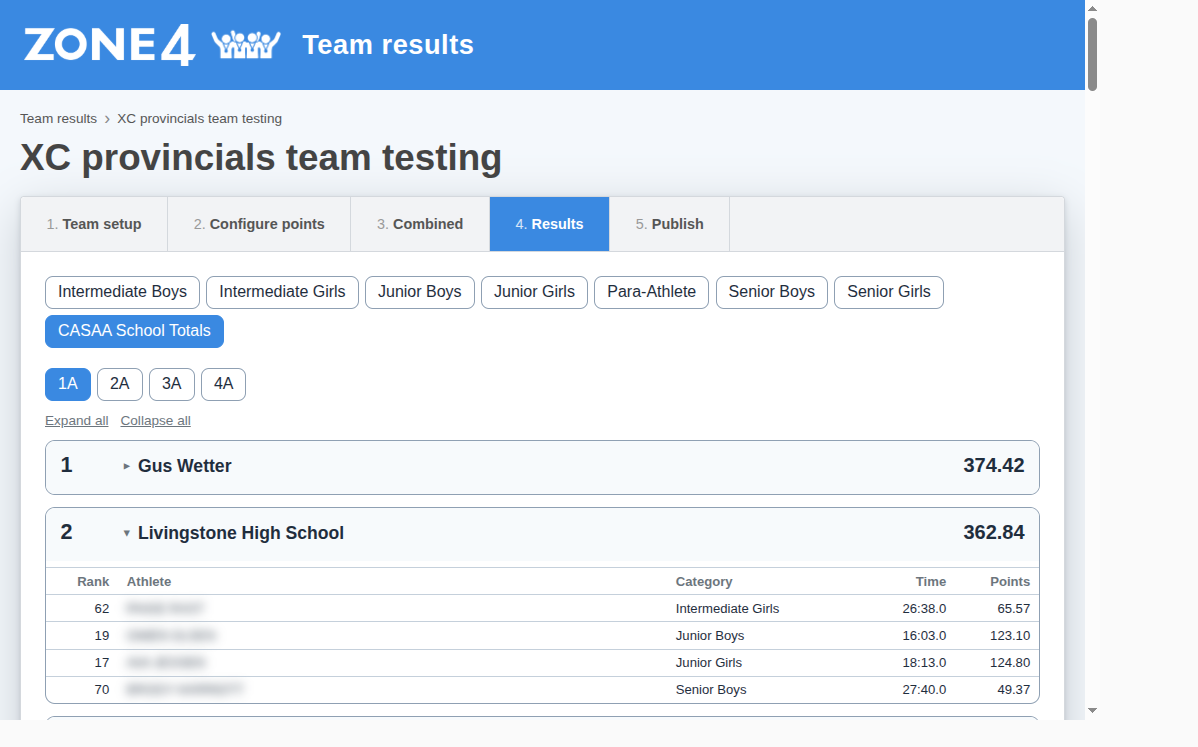
4. Results has a tab for each category and each combined view. A combined view that is separated, for example by class, has a second row of tabs.
Open a team to see its runners. A DNF or DSQ shows in the Rank column. Runners who do not count toward the total are greyed out. When the profile has Show notes ticked, a Note column says why a runner does not count or why their rank differs from their overall place. Alberta schools leaves notes off, because every finisher scores.
While the race is in progress
Standings fill in as the race is timed. Until anyone in a category finishes, the category is scored from the furthest split or lap that has times, such as L1 for lap 1.
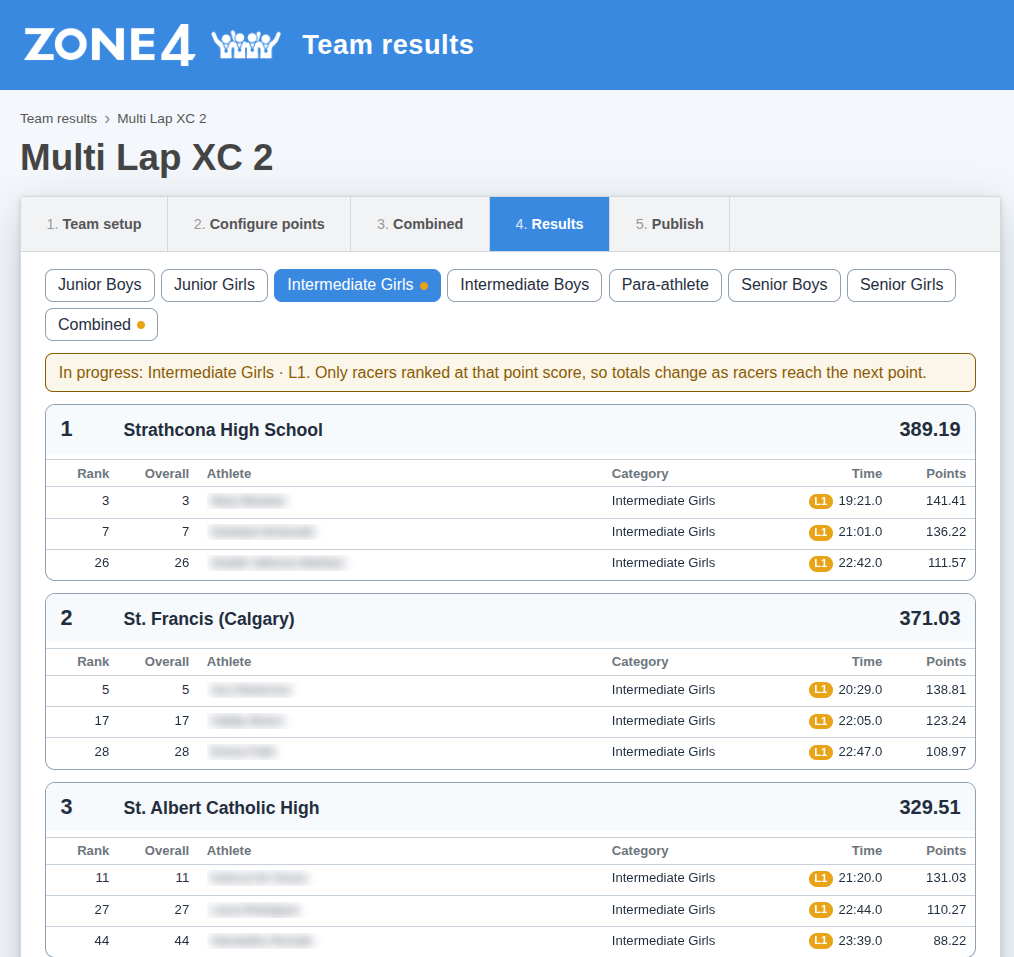
- The category's tab, and any combined view that uses it, has an orange dot. A note above the standings names the category and the point, for example In progress: Intermediate Girls · L1.
- A runner timed at a split has an orange pill with the split's name, such as L1, before their time. That time is their time at the split, not a finish time.
- Only runners with a time at that point score. Runners who have not reached it yet are left out, so totals and places change as the field arrives.
Once the first runner in a category finishes, the category is scored from finish times, and only finishers score.
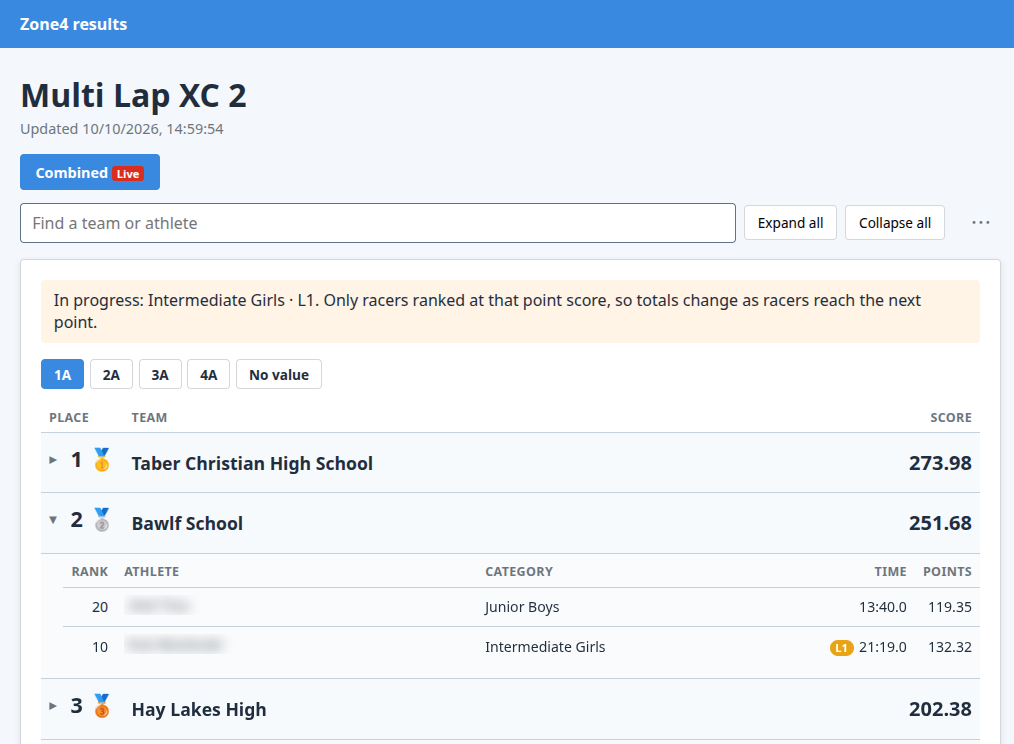
A published page shows the same pills, and a view still in progress has a red Live badge on its tab. The page is a snapshot from when you published it, so publish again as more runners come in.
Publish
On 5. Publish, tick the views the public page should include. Unticking a view only leaves that tab off the page. A combined view still counts it.
Preview opens the page without publishing. Publish replaces the public page with the standings as they score right now. The page does not update on its own, so publish again when the results change.
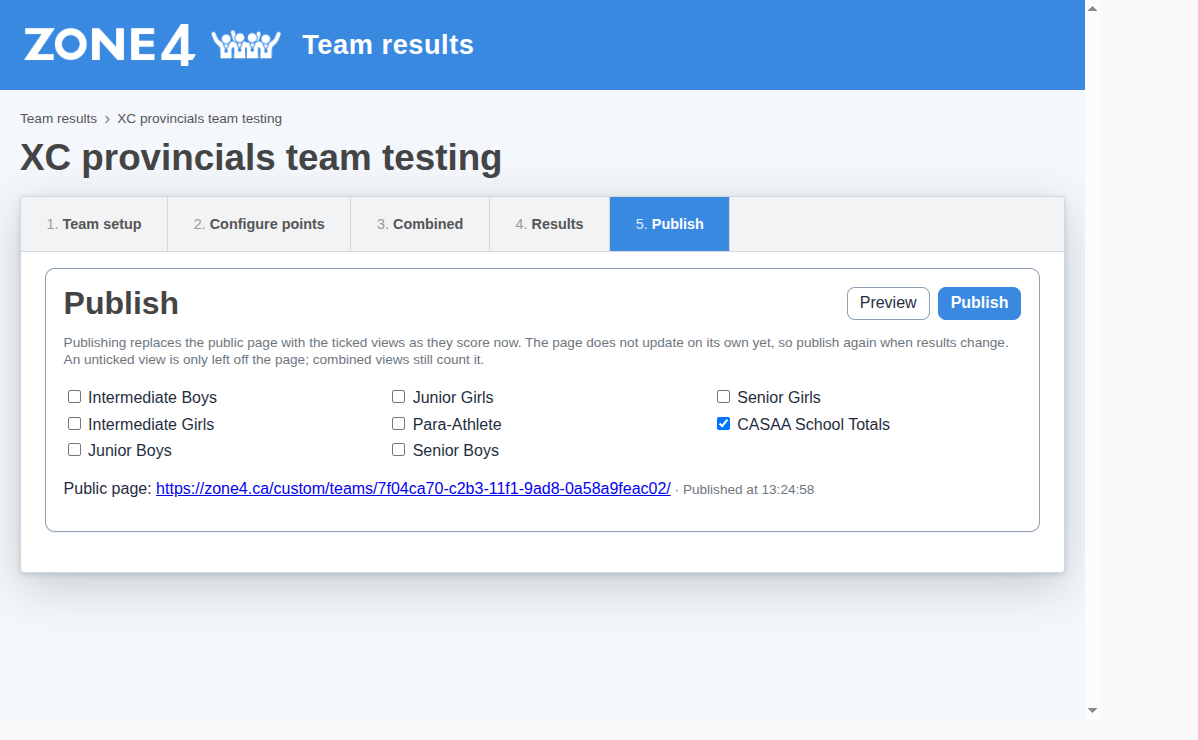
The public address is https://zone4.ca/custom/teams/ followed by the race id. Visitors can switch views, search for a team or an athlete, open a team, and download a CSV of the view they are looking at from the ⋯ menu.