A livestream rents a cloud renderer for an event, takes a feed from one or more cameras, burns in the race graphics, and publishes a single live program — to the Zone4 event page, to YouTube, or to a custom RTMP target. You start it, cut between cameras, and stop it, all from the event page in the web console. The cameras just feed it; nobody standing at a camera turns anything on.
Three things to know first
One livestream at a time, per event
A single renderer carries every camera, output, and all the races happening at any time. There is one Livestream panel on the event page, and you can't start a second while one is running.
It runs on a dedicated server that takes a minute to boot up
Start it before the race and stop it when you are done — a forgotten stream keeps billing, and a public stream on the Zone4 event page is also billed for the bandwidth its viewers use. The stream will automatically shut itself off if no cameras are connected for 20 minutes.
A phone that is livestreaming is not recording clips
Going live is a mode on the device: while it is on air its motion detection and clip capture are switched off. Choosing a phone as a livestream camera is a bigger decision than it looks, and the console says so.
Cameras
The livestream takes a fixed number of cameras. Before you start the stream, you must decide how many cameras you want. Each camera "slot" consumes some CPU on the renderer, even when no camera is actually attached to it, so don't add more than you will use. The maximum is nine.
Using the Race Recorder app on a phone is the easiest way to get a camera into the stream. The app will auto negotiate its connection, you will not have to type in any addresses or passphrases.
You can also use (almost) any camera that supports RTMP or SRT streaming. SRT and RTMP cameras must support auto-reconnection and send h264 video.
Where the stream goes
- Zone4 Event Page — Display your livestream on the Zone4 event page. This is the easiest to set up, but we will charge you for the bandwidth it uses.
- Unlisted — a Zone4 Event Page stream that the event page doesn't show. It plays on its own watch page instead, and Copy link copies that page's address for you to share. Anyone with the link can watch, so unlisted is not private. Show on event page puts it on the event page later without interrupting it, and the page catches up within a minute or so.
- YouTube — free, with YouTube's own ads. You will need to provide a YouTube stream key; see YouTube's help pages for how to get one. Always use a freshly generated one — a reused key can leave YouTube stuck on Preparing stream....
- Custom — any
rtmp://…target you paste in full.
A stream can go on air with no destination yet. That is deliberate: you can boot the renderer — a two-minute job — before the YouTube broadcast even exists, then paste the key once it is up, and not miss the start of the race.
Starting the livestream
Start a livestream on the event page opens the launch dialog. Work down it top to bottom.
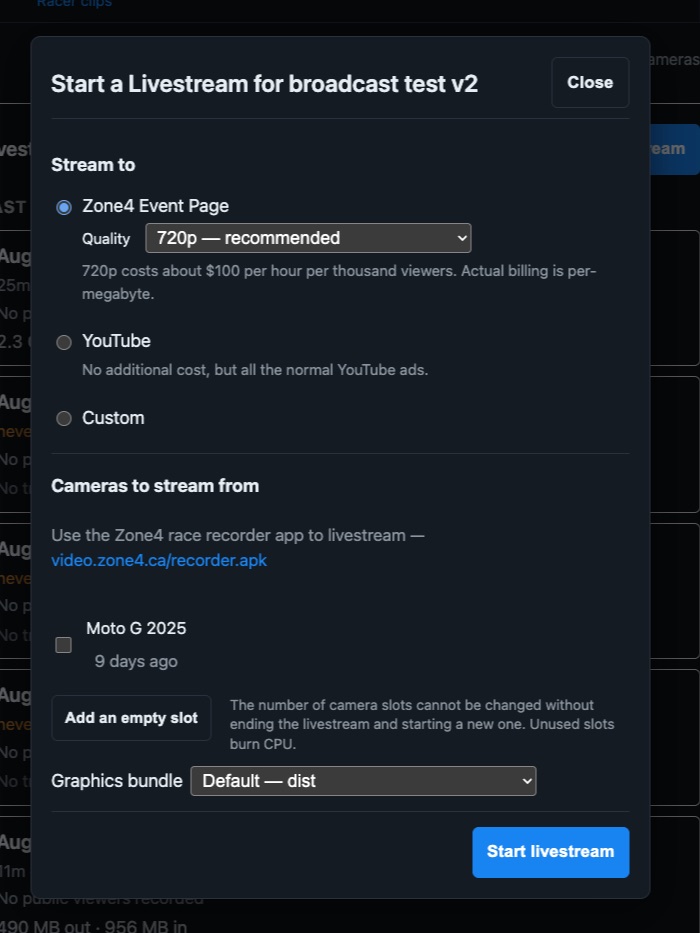
- Stream to — the destination from Where the stream goes: Zone4 Event Page, YouTube, or Custom. Picking one reveals its quality or stream-key field.
- Cameras to stream from — tick the phones you want on this stream. They are claimed onto slots in the order you tick them: first tick is camera 1.
- Add an empty slot — a slot with no camera yet, which comes up on a slate until one is added. The slot count is fixed for the life of the stream — changing it means stopping and starting a new one — and unused slots burn CPU, so add what you will use. The maximum is nine.
- Race to start on — only appears when more than one race has a camera pointed at it. This is just the starting graphics; from the first cut onward each output's graphics follow whichever camera is on air.
Start livestream boots the instance and then claims your selected cameras. If a camera cannot be claimed, the stream still starts and the panel tells you which one to add by hand. The renderer takes a minute or two to come up; the panel shows Starting up… until it reports ready.
The multiview
The multiview is your live control screen — every input and output.
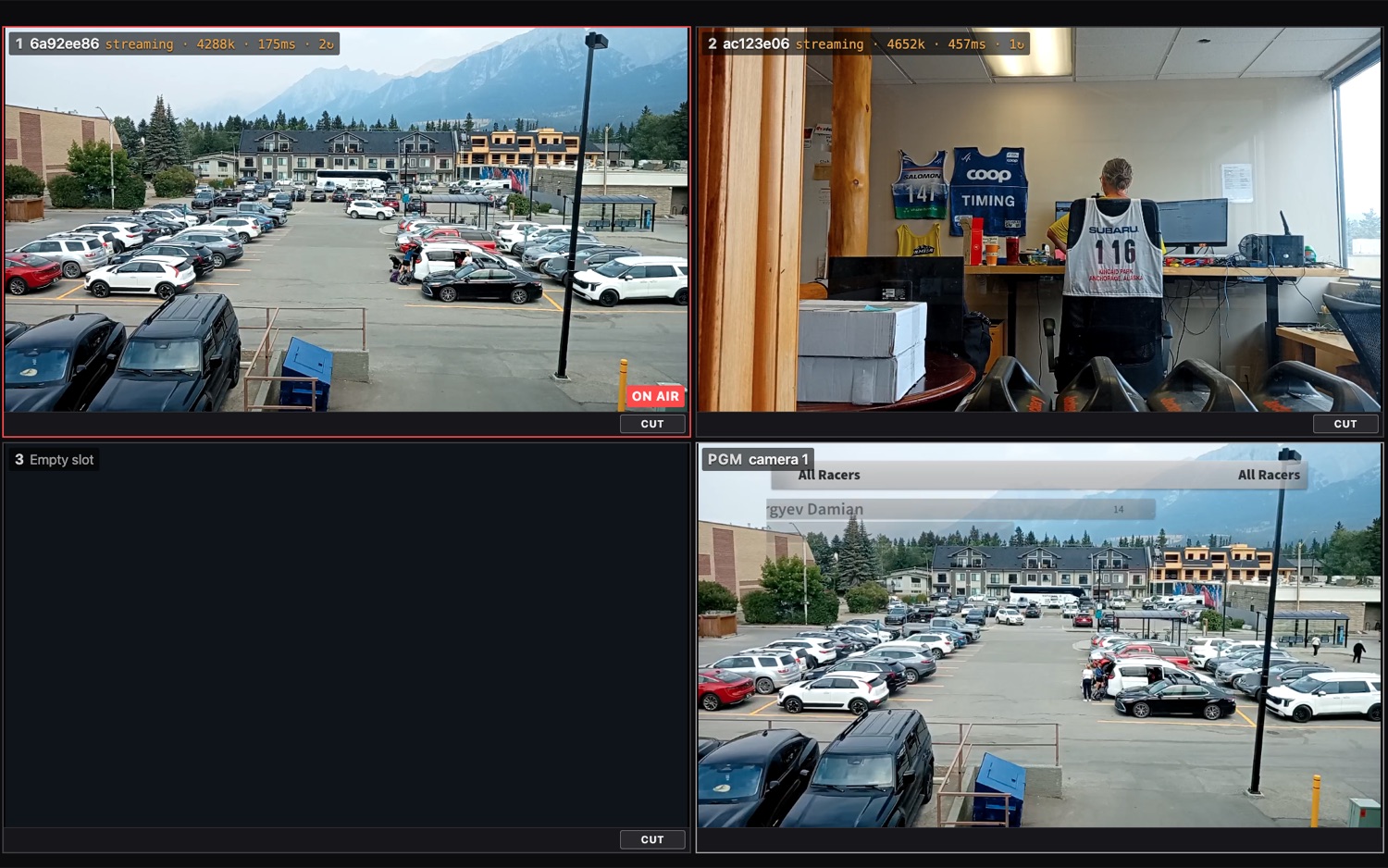
- Camera tiles — one per slot, each with a Cut button underneath. Cutting is instant and takes no confirmation; press the button you are on to undo it. The picture itself is not clickable, so a stray tap cannot change the program.
- Number keys 1–9 — cut straight to that slot. This is the fast way to switch.
- on air / taking — the on-air tile carries a red ring; taking marks a cut the renderer has not confirmed yet.
- PGM tile — the composited program with graphics burned in, teed off the feed going to air. It is your check of what actually goes out, as opposed to the raw cameras beside it. It is not what the viewers are currently seeing — their view lags by several seconds.
- Cutting: Output 1 / 2… — along the top, only when there is more than one output — it chooses which output your cuts act on. There are also toggles to hide the PGM tiles and the per-frame stats.
Cut between cameras from here, never from the public player
The multiview is a second behind; the public feed is much further back — around six seconds on the event page, closer to twenty on YouTube. Cutting to what a viewer's page is showing means cutting on stale pictures.
Is it healthy?
The panel carries a handful of live signals. Most of the time they read the boring way; here is what they mean when they do not.
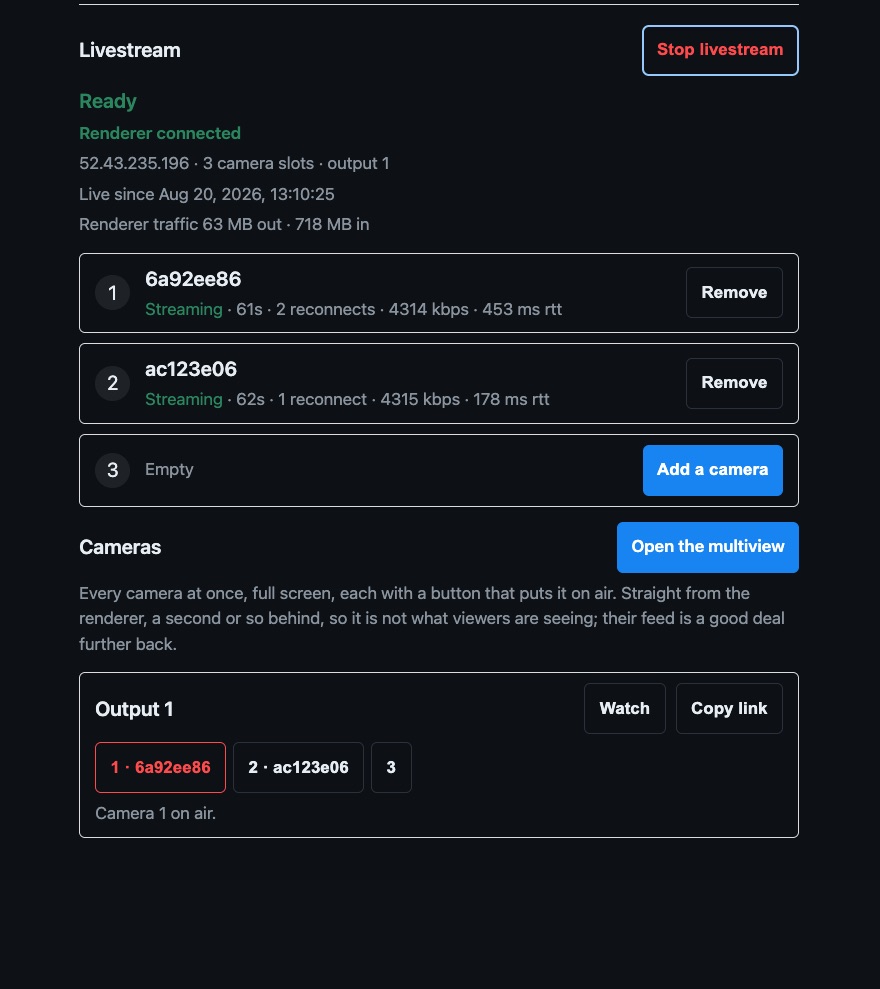
- Renderer connected — Waiting for the renderer to check in or Renderer not responding is the control link, not the stream: while it is down you cannot cut, but phones already on air stay on air. It usually comes straight back.
- Test graphics — a warning that the stream is carrying the test card — a clock and corner marks — rather than the real race overlay. Worth catching before you go public.
- Per-phone status — for each phone camera: its state, how long since it connected, reconnect count, send bitrate, round-trip time, frame-shedding and dropped frames. Third-party SRT cameras report none of this — watch those in the multiview.
- Relay dropping N/s — a renderer-side problem, not your network: the multiview will freeze, the stream to air will not. Only shown when it is actually happening.
- Ns behind (dwell) — how far the program picture is lagging the live camera.
- Renderer traffic — the box's own network totals. It is not a limit and not the viewer-side meter — just what the machine has moved.
Stopping
Stop livestream ends the stream and shuts the renderer down. It asks first, because it cannot be resumed — starting again is a fresh stream, and for YouTube a fresh broadcast, though the key can be reused. Any phones on the stream go back to normal recording.
If you do not stop the stream manually, it will shut itself down 20 minutes after the cameras disconnect.
When something looks wrong
- Open the multiview is greyed out — the renderer is not connected yet. Give it a minute.
- YouTube is stuck on "Preparing stream" — the stream key was reused. Generate a fresh one and set it.
- The scoreboard is cropped, or it is a clock and corner marks — the stream is on the test-card graphics, not the real overlay.
- A phone is not in the camera list — it has not recorded on this event yet. Record a moment with it first.
- A phone dropped off, or stopped recording clips — expected — livestreaming is a mode, not a second job the phone does alongside recording.
- A slot shows "Empty slot" or sits on a slate — no camera is claimed on it, or the encoder is not pushing to the address and passphrase from Where to point the cameras.