---
title: Broadcast Main Control Panel
categories: [broadcast]
summary: "Open Broadcast for a race, pick an output and its graphic, check it in the preview, and send it live."
updated: 2026-10-14
---
Use this panel to pick an output, choose its graphic, check it in the preview, and send it live.
> **Preview first, then publish**
>
> Editing the preview does not change what viewers see. Click **Update Live Output** when the preview is ready.
## Open Broadcast for the race
Open Broadcast, sign in and select the race. The first time, Zone4 may ask you to authorize Broadcast.
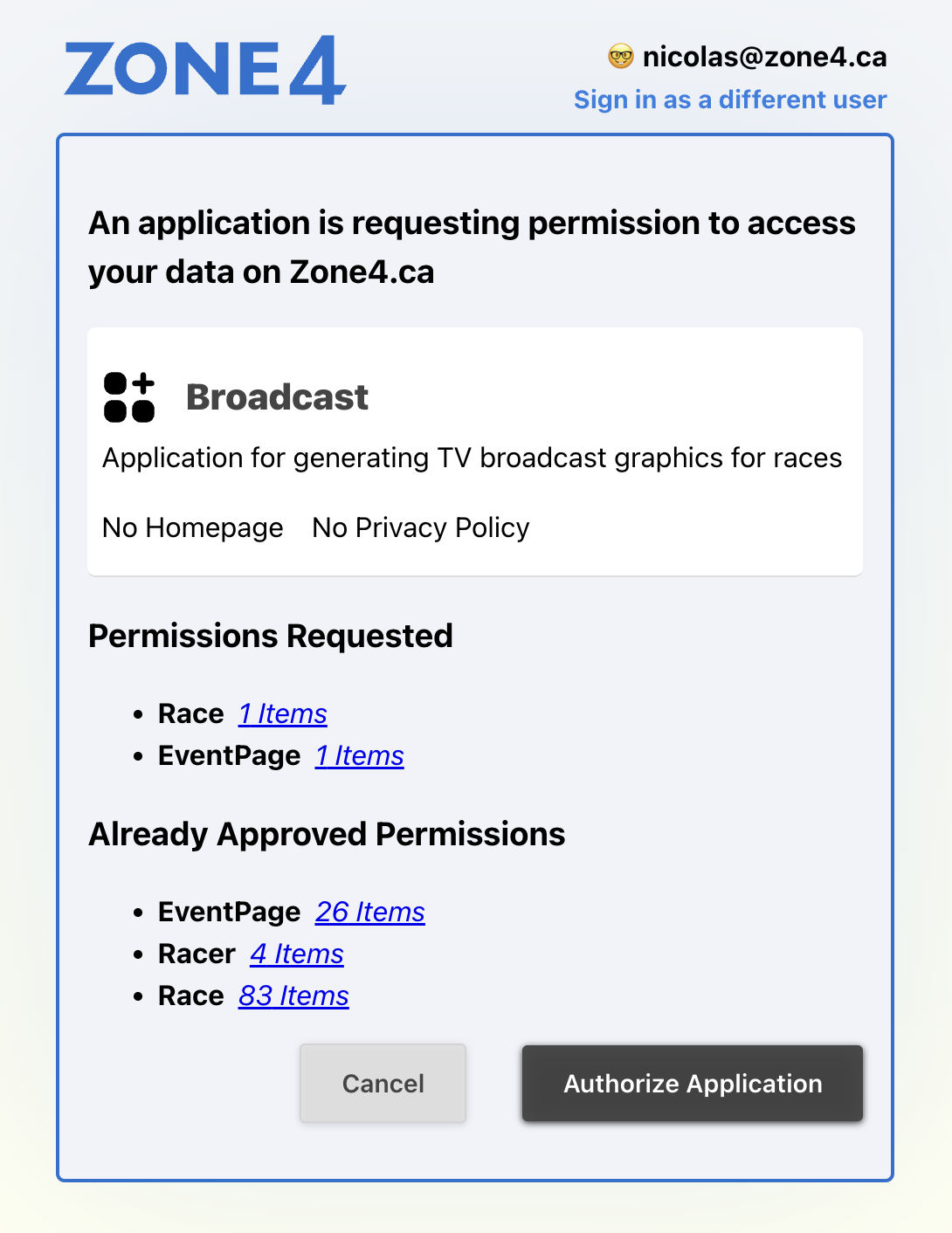 *Confirm the signed-in account and authorize Broadcast.*
## The control panel
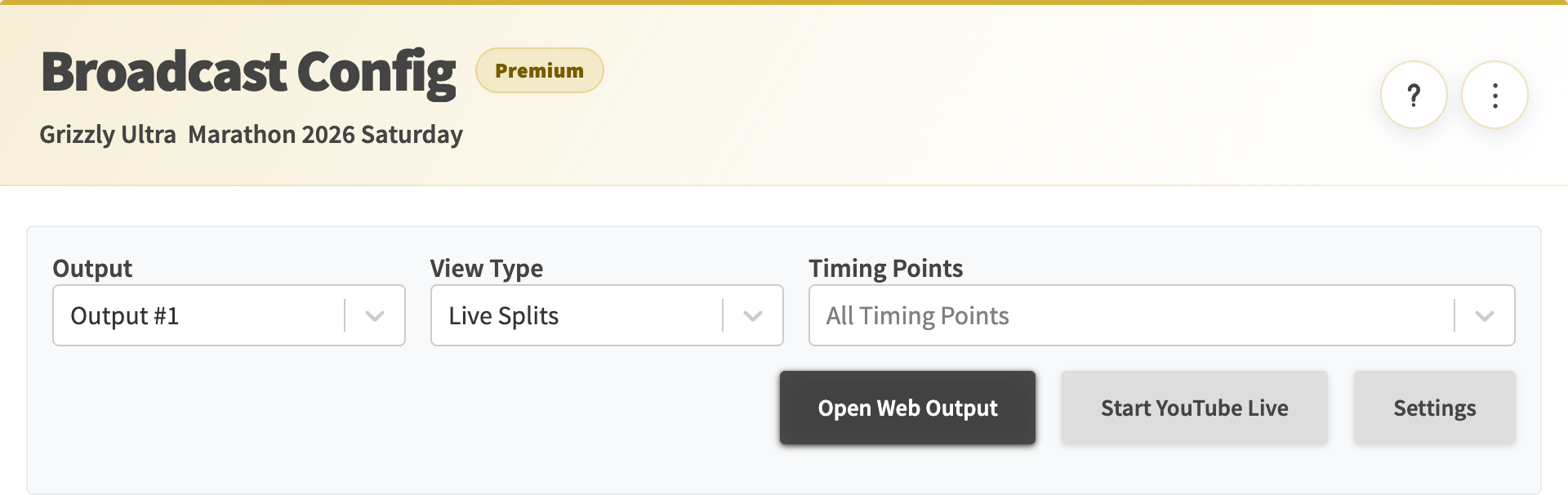
*Race-wide actions and Help at the top, the selected output below.*
### Header
| Control | What it does |
| --- | --- |
| Help (?) | Opens this help in a new tab. |
| Race actions (⋮) | Race-wide commands that refresh race data. |
| Populate Racers | Reloads racers after athletes or their public fields change. |
| Populate Groups | Rebuilds result groups after group rules or racer data change. |
| Re-calculate calcs | Recalculates results when rankings look stale. |
### Output
| Control | What it does |
| --- | --- |
| Output | The browser source you are editing. Each output has its own URL and graphic. |
| Add Output | Adds an output. Use one per layer in OBS, vMix, the video app or a venue screen. |
| View Type | The graphic to show. The list depends on the event’s package. |
| Timing Points | Limits the crossings the views offer. Empty means all. |
### Publishing
| Control | What it does |
| --- | --- |
| Preview | Shows the output at its resolution, scaled to fit. |
| Update Live Output | Sends the preview to the live output. Click it after every change. |
| Clear | Empties the live output right away. Check the output number first. |
| Open Web Output | Opens the output page. Use its URL as a transparent browser source in OBS or vMix. |
| Start YouTube Live | Opens the Zone4 video app to stream to YouTube or the event page. |
| Settings | Opens [Broadcast Settings](/kb/broadcast-settings/). |
*Confirm the signed-in account and authorize Broadcast.*
## The control panel

*Race-wide actions and Help at the top, the selected output below.*
### Header
| Control | What it does |
| --- | --- |
| Help (?) | Opens this help in a new tab. |
| Race actions (⋮) | Race-wide commands that refresh race data. |
| Populate Racers | Reloads racers after athletes or their public fields change. |
| Populate Groups | Rebuilds result groups after group rules or racer data change. |
| Re-calculate calcs | Recalculates results when rankings look stale. |
### Output
| Control | What it does |
| --- | --- |
| Output | The browser source you are editing. Each output has its own URL and graphic. |
| Add Output | Adds an output. Use one per layer in OBS, vMix, the video app or a venue screen. |
| View Type | The graphic to show. The list depends on the event’s package. |
| Timing Points | Limits the crossings the views offer. Empty means all. |
### Publishing
| Control | What it does |
| --- | --- |
| Preview | Shows the output at its resolution, scaled to fit. |
| Update Live Output | Sends the preview to the live output. Click it after every change. |
| Clear | Empties the live output right away. Check the output number first. |
| Open Web Output | Opens the output page. Use its URL as a transparent browser source in OBS or vMix. |
| Start YouTube Live | Opens the Zone4 video app to stream to YouTube or the event page. |
| Settings | Opens [Broadcast Settings](/kb/broadcast-settings/). |
 *Update publishes the preview. Clear empties the output.*
> **New outputs start empty**
>
> A new output shows nothing until you choose a view and click **Update Live Output**.
## Crossing distances
Live Splits shows each crossing’s **Distance (km)** from the race’s **Course Setup**. Broadcast has no distance setting of its own.
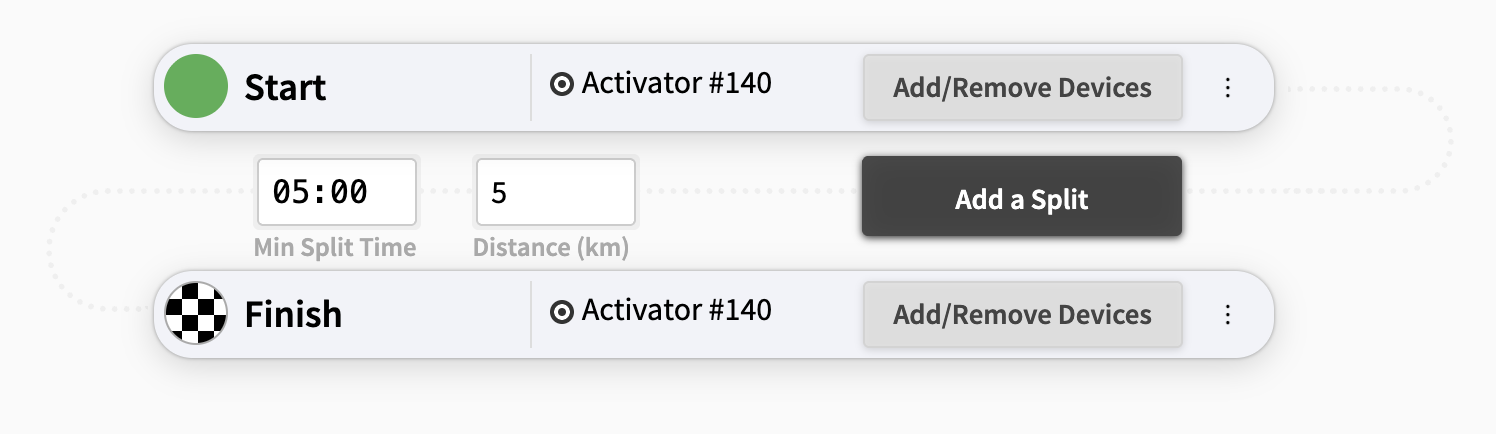
*Enter each crossing’s Distance (km) in Course Setup.*
*Update publishes the preview. Clear empties the output.*
> **New outputs start empty**
>
> A new output shows nothing until you choose a view and click **Update Live Output**.
## Crossing distances
Live Splits shows each crossing’s **Distance (km)** from the race’s **Course Setup**. Broadcast has no distance setting of its own.

*Enter each crossing’s Distance (km) in Course Setup.*
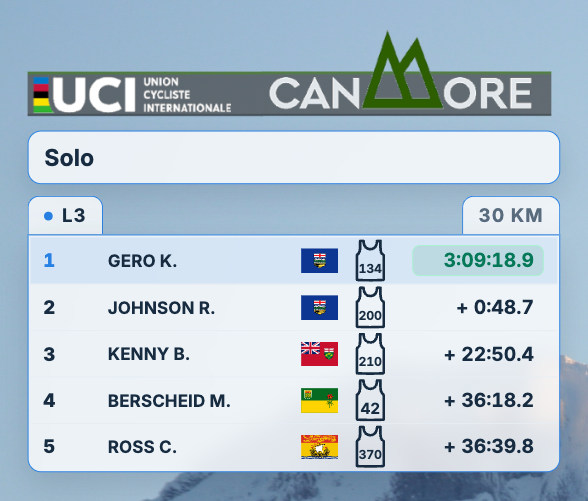 *Live Splits shows that distance for the selected crossing.*